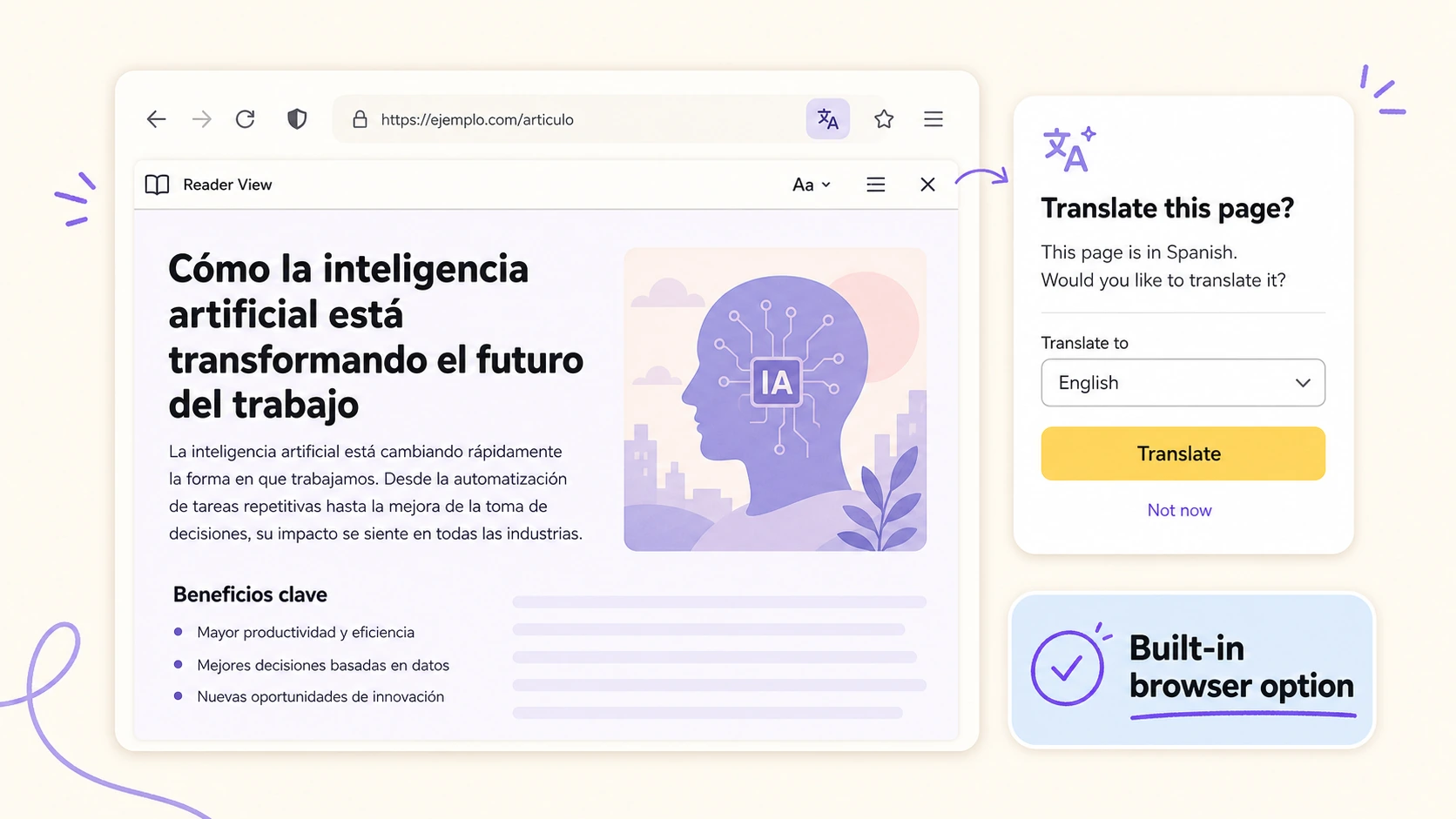
If you use Firefox and land on a foreign-language article, you do not always need to install a translation add-on. In many cases, the fastest way is to use Firefox’s built-in translation feature. The important thing is knowing where the option appears, why it sometimes disappears, and what to do when a page cannot be translated cleanly.
This guide explains how to translate a webpage in Firefox without installing an extension, using the browser’s own translation feature first. I’ll also cover the common failure cases: the translation icon is missing, Firefox does not detect the page language, the page uses a language that is not supported, or the result is not readable enough for a long article.
When Firefox Built-In Translation Works Best
Firefox’s built-in translator is designed for normal webpages: articles, blogs, help documents, product pages, and other text-heavy pages. It is especially useful when the page is public, the language can be detected, and the content is written in standard HTML rather than being hidden inside complex scripts.
For quick reading, this is usually enough. You open the page, wait for Firefox to detect the language, choose the translation option, and read the page in your preferred language. No account, no extra extension, no copy-and-paste workflow.
The main limitation is that browser translation depends on language support, page structure, and detection. If any of those fail, Firefox may not show the translation button at all.
How to Translate a Webpage in Firefox Without Installing an Extension
Here is the normal workflow.
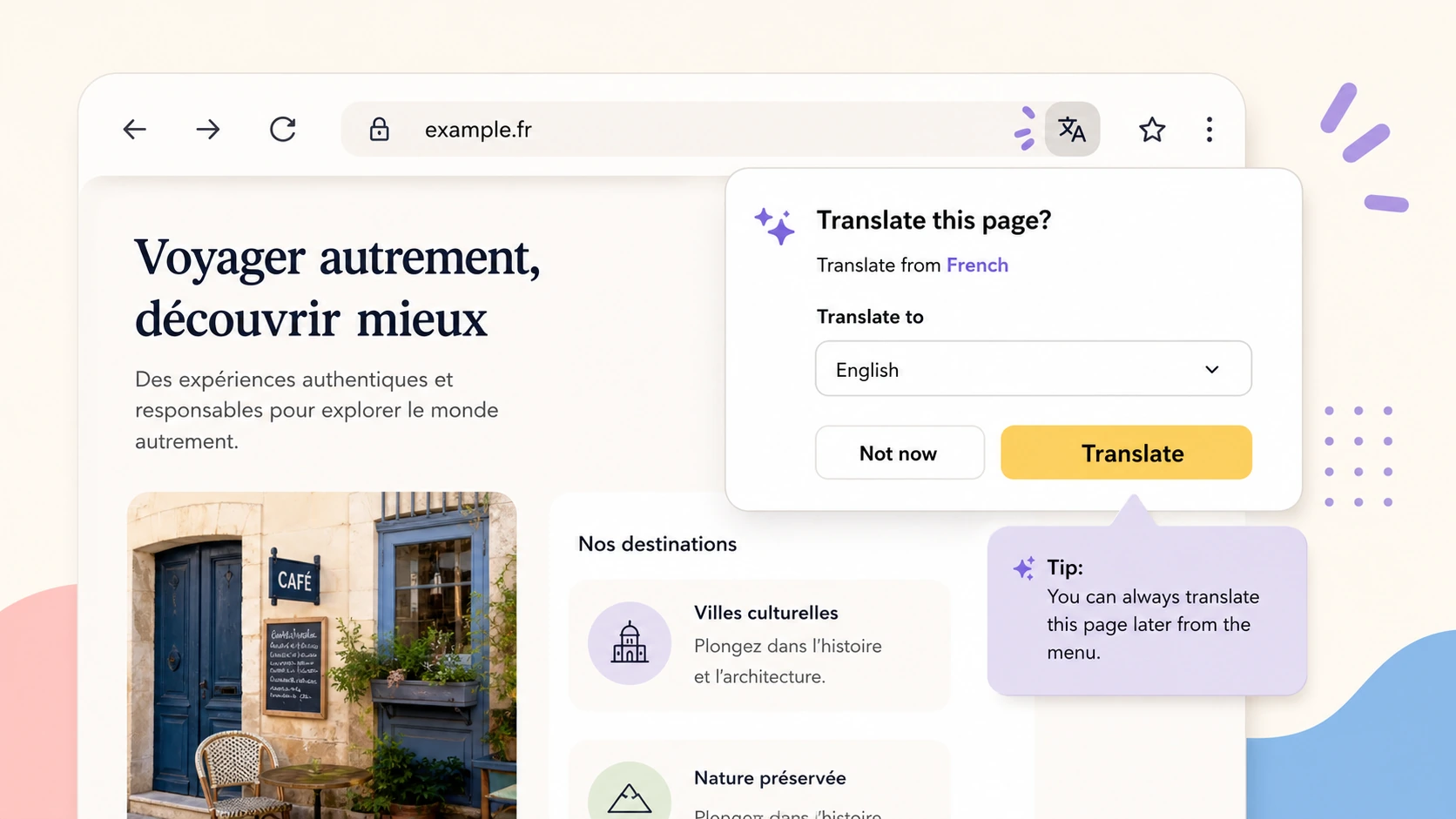
First, open the webpage you want to translate in Firefox. If Firefox detects that the page is in a language different from your browser language, a translation icon may appear in the address bar or toolbar area. Click that icon to open the translation panel.
Next, check the detected source language. If Firefox guessed incorrectly, change it manually if the option is available. Then choose the language you want to translate into and start the translation.
Once the translation is complete, read the page normally. In many cases, Firefox will keep the page layout close enough that you can still follow headings, paragraphs, lists, and links.
That is the cleanest version of how to translate a webpage in Firefox without installing an extension. It works best when the browser recognizes the page language and the page is built like a regular article.
What to Do If the Firefox Translate Button Is Missing
If the translation option does not appear, do not assume Firefox is broken. There are several normal reasons.
The page may already be in your preferred language. Firefox usually does not offer translation when it thinks the page does not need it. The page language may also be incorrectly marked by the website, which can confuse detection.
Another possibility is that the source or target language is not supported by the built-in translation feature. Browser translation support changes over time, so it is worth checking Firefox’s current language support if you rely on it for a specific language pair.
The page itself can also be the problem. Pages that require login, block automated reading, load most text dynamically, or display content inside images may not translate well. A page can look readable to you while still being difficult for a browser translator to process.
Check Firefox Translation Settings
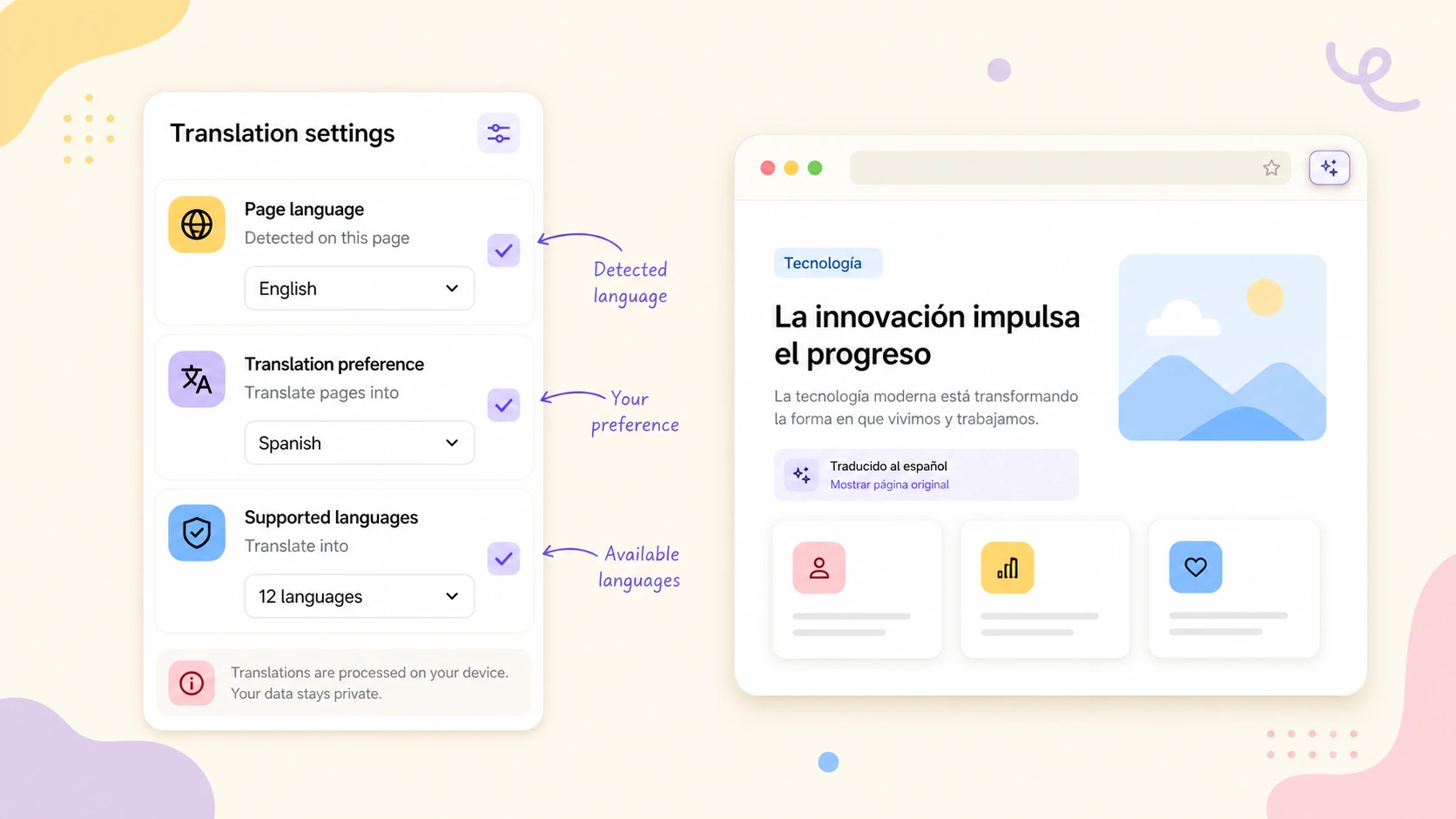
If you expect translation to work but it does not appear, check your Firefox language and translation settings. Look for settings related to language preferences, translation prompts, and whether translation has been disabled for a specific language or website.
It is easy to accidentally tell Firefox not to translate a language or site again. If you did that earlier, the translation option may stop appearing even when the page would normally be supported.
You can also try reloading the page, opening it in a new private window, or testing another foreign-language page. If translation appears on another page, the issue is probably page-specific rather than a browser-wide problem.
When a URL-Based AI Translator Is a Better Fit
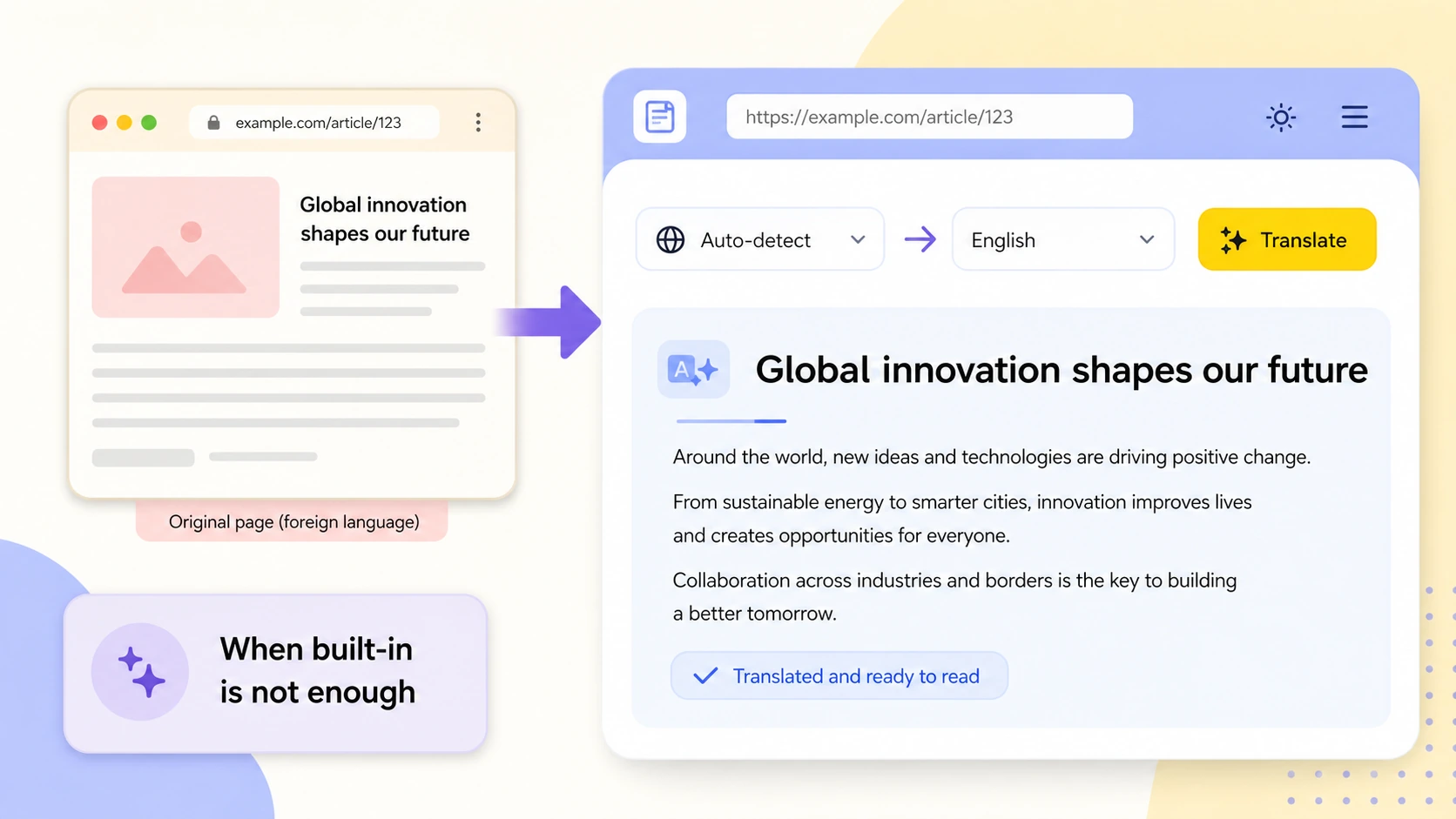
Firefox’s built-in translator is convenient, but it is still a browser feature. Sometimes you need a different workflow: paste a URL, choose a target language, and read a translated version of the main page content in a clean view.
That is where an AI Web Translator can help. It is useful when you are reading long articles, technical documentation, or product pages where context matters. Instead of replacing the page in place, a URL-based translator can focus on extracting the main content and presenting the translation in a reading view.
This does not mean you should skip Firefox’s built-in tool. For quick pages, use the browser feature. For longer pages where readability, structure, or terminology consistency matters, a dedicated webpage translation workflow may be better.
Built-In Translation vs Copying Text into a Translator
Copying text into a translator works for a sentence or a short paragraph. It becomes painful for full webpages. You lose headings, links, images, and the relationship between sections. You may also copy navigation text, ads, comments, or unrelated sidebar content.
That is why full-page translation matters. The page is not just words. It has structure, emphasis, examples, and flow. When you translate a page inside Firefox, much of that structure stays in place. When you use a URL-based translator, the tool can also focus on the main reading content instead of forcing you to clean up the text manually.
If your real goal is to understand a long foreign-language page, structure is part of the translation quality.
Common Firefox Webpage Translation Problems
The most common problem is the missing translation icon. The next most common problem is partial translation: headings translate, but menus or dynamic content do not. You may also see poor results when the page mixes several languages or uses specialized terms.
For news and blogs, the built-in feature is often fine. For technical documents, legal pages, research posts, or product pages, you may need to compare the translated result with the original text. This is especially true for names, product terminology, code snippets, and quoted statements.
If you also use Chrome and run into similar issues there, this troubleshooting guide may help: Chrome Translate not working.
A Practical Rule of Thumb
Use Firefox’s built-in translation when the page is short, public, and detected correctly. It is the lowest-friction option.
Use a URL-based webpage translator when the article is long, the built-in option is missing, or you want a cleaner reading result. If you specifically want to use AI for the full page, follow this guide: how to translate an entire webpage with AI.
Use manual copy-and-paste only when the page is blocked, login-only, or too unusual for automatic extraction.
Final Takeaway
The simplest way to translate a webpage in Firefox without installing an extension is to use Firefox’s built-in translation option from the address bar when it appears. It is fast, private, and good enough for many everyday pages.
But the missing button is not rare, and it does not always mean you did something wrong. Language support, page structure, site settings, and browser preferences can all affect whether translation appears. When Firefox cannot translate the page or the result is hard to read, use a URL-based webpage translation workflow instead.
For readers who move between browsers and want a simple URL-based option, ClaviSay offers a reading-first path for translating web content without turning every page into a manual copy-and-paste job.