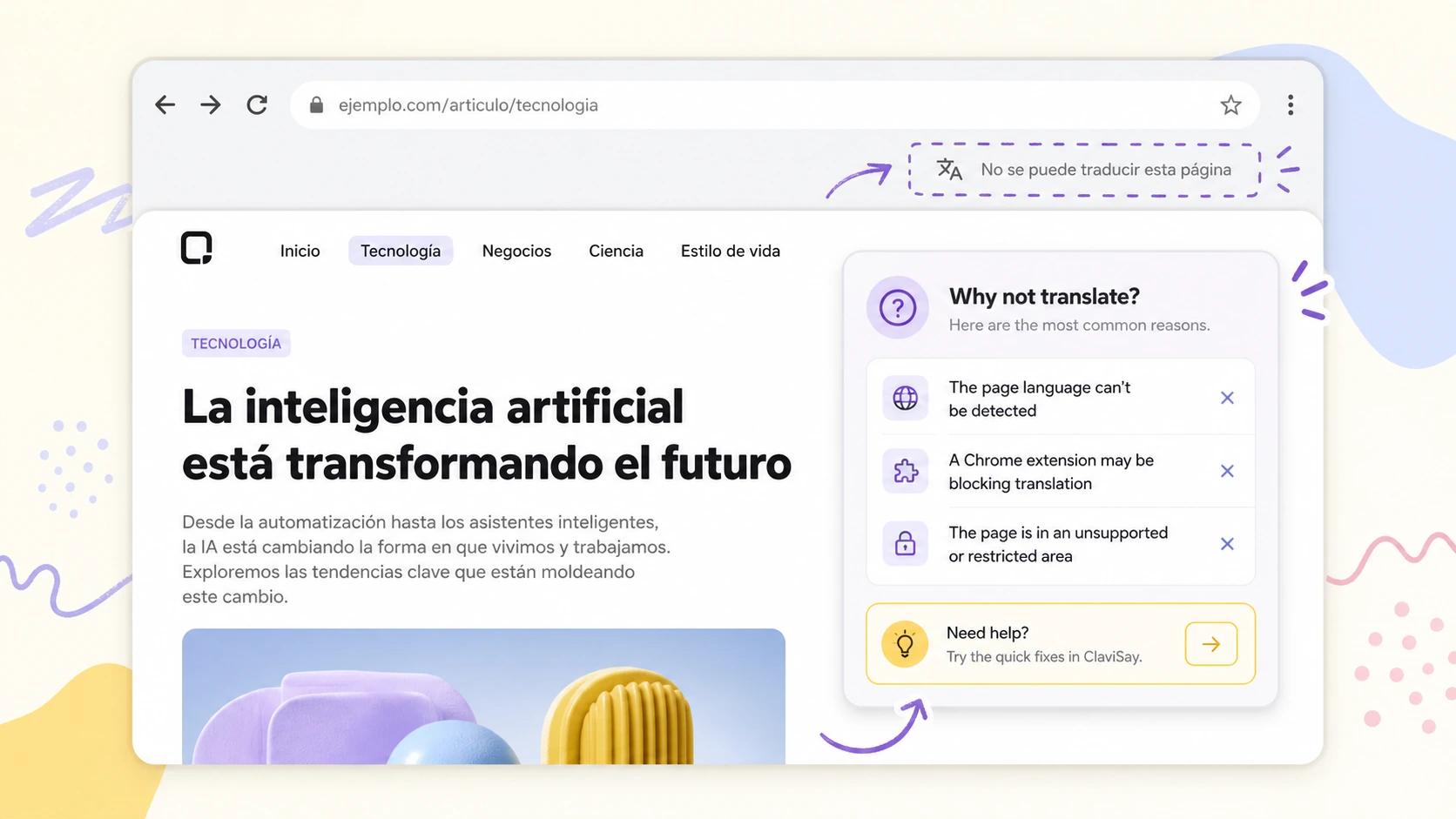
Chrome Translate is usually invisible when it works. You open a foreign-language page, Chrome detects the language, and a translation option appears. The problem is that when it fails, it is not always obvious why. The button may disappear, translation may be grayed out, the page may only translate halfway, or Chrome may say the page could not be translated.
If Chrome translate not working is the problem you are trying to solve, start by identifying which kind of failure you are seeing. A missing translate icon is different from a failed translation. A partial translation is different from a language setting problem. The fastest fix depends on the symptom.
Quick Diagnosis: What Exactly Is Broken?
Before changing settings, ask one simple question: does Chrome fail on every foreign-language page, or only on one website?
If Chrome fails everywhere, the issue is probably your browser settings, preferred languages, translation prompts, extensions, profile, or network environment. If Chrome only fails on one page, the issue is probably the page itself: blocked content, unusual markup, login requirements, heavy JavaScript, mixed languages, or text embedded in images.
That distinction saves time. You do not want to reset half your browser when the website is the real problem.
Fix 1: Check Whether Translation Is Disabled
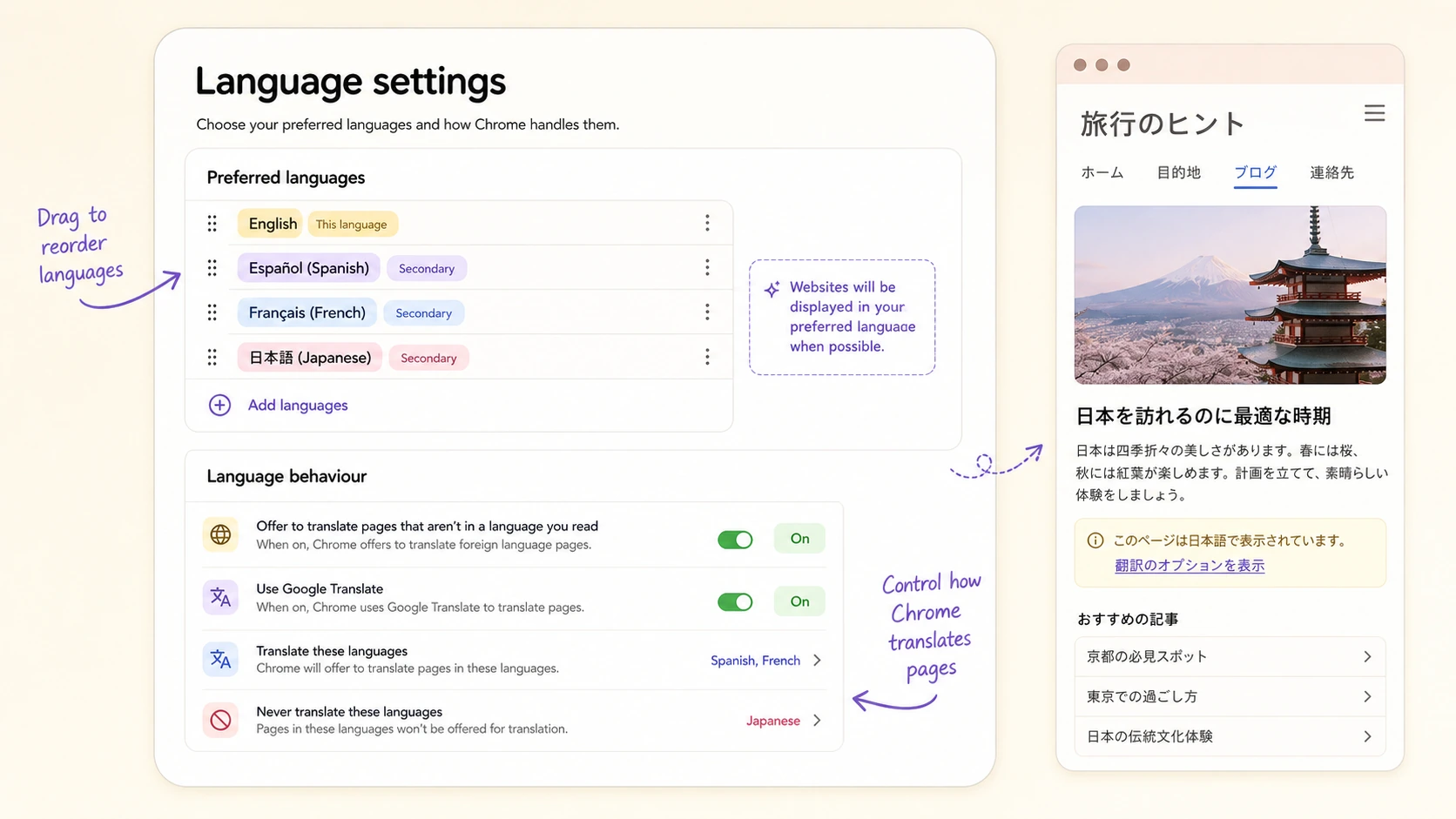
Chrome can offer to translate pages that are not in your preferred languages, but this behavior depends on your language settings. Open Chrome settings, go to the language section, and check whether translation prompts are enabled.
Also check whether you previously selected “Never translate this language” or “Never translate this site.” Those choices are useful in the moment, but easy to forget. If Chrome has been told not to translate a language or site, the translate option may stop appearing even when the page is eligible.
After changing the setting, reload the page. If nothing changes, test with another foreign-language page. A single test page can mislead you.
Fix 2: Use the Address Bar Translation Option
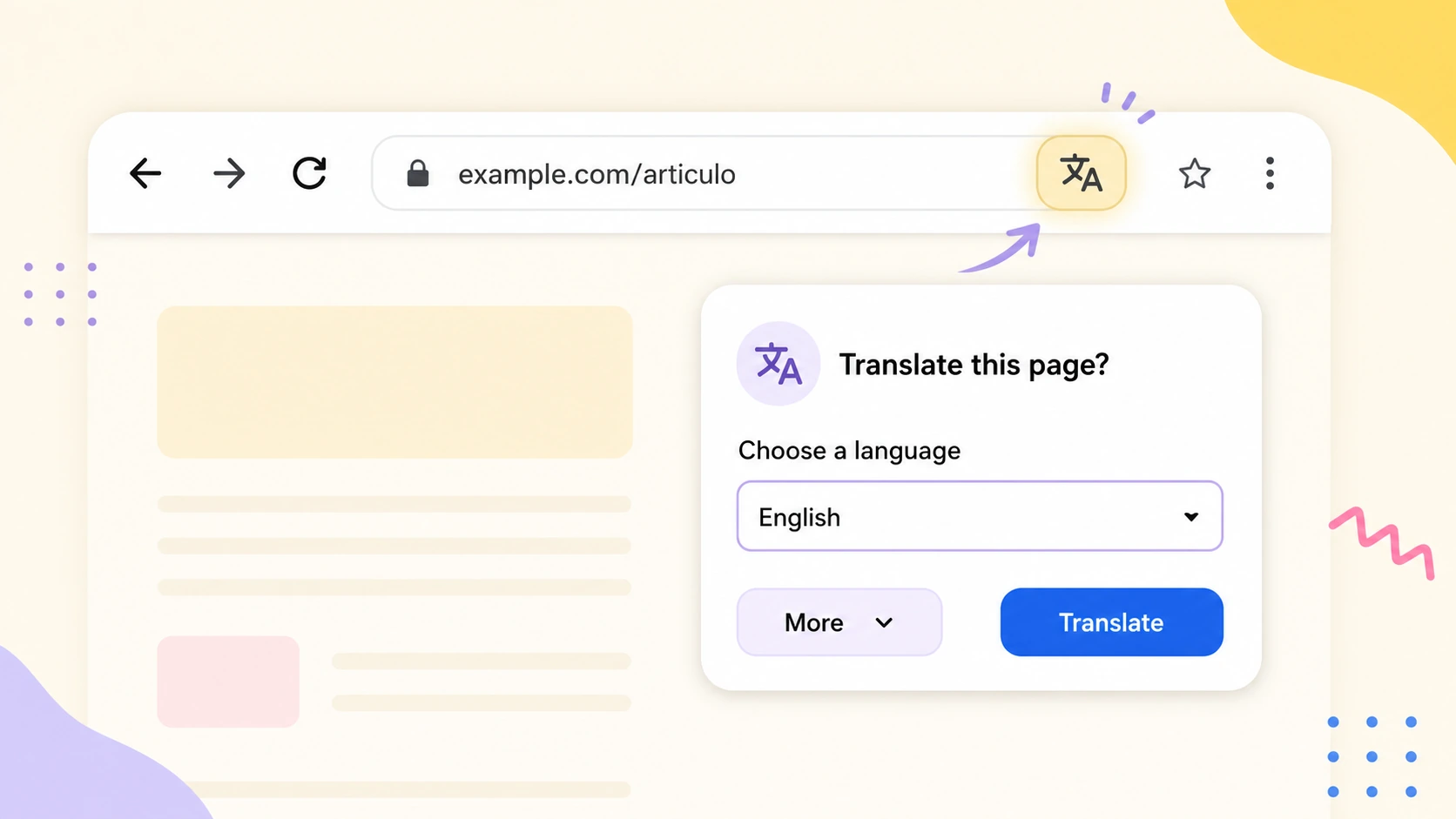
Sometimes Chrome does not show a large prompt, but the translation option is still available from the address bar. Look near the right side of the address bar for the translate icon. If you see it, click it and choose the target language.
If the icon does not appear, right-click the page and look for a translate option in the context menu. This can work when the automatic prompt does not appear.
If both options are missing, Chrome may believe the page is already in your preferred language, or the page language may not be detected properly.
Fix 3: Check the Page Language
Chrome relies partly on language detection. If a site marks its language incorrectly, mixes several languages, or serves only a small amount of readable text, Chrome may not offer translation.
This often happens on landing pages, dashboards, product pages, and pages that load content after the initial page render. It can also happen when the visible text is inside images, canvas elements, embedded documents, or scripts that Chrome’s translation layer cannot process normally.
If Chrome translate not working only happens on this one page, try a different article from the same language. If the second page translates, Chrome is probably fine.
Fix 4: Reload, Update, and Test Without Extensions
Basic fixes still matter. Reload the page. Update Chrome. Restart the browser. Then test again.
If the problem continues, open the page in an incognito window. Extensions are disabled by default in incognito unless you allowed them, so this is a quick way to check whether an extension is interfering. Ad blockers, privacy tools, script blockers, and security extensions can change page content enough to affect translation.
If translation works in incognito, turn extensions off one by one in your normal profile until you find the conflict.
Fix 5: Clear Site Data for the Problem Website
Some translation problems are caused by stored site state. Cookies, cached scripts, and local storage can cause a website to load a different version of the page than expected.
Clear site data for the affected website, reload it, and try translation again. This is especially useful when a site has recently changed language settings, geolocation behavior, login prompts, or consent banners.
You do not need to clear all browser data immediately. Start with the specific site. It is safer and less disruptive.
Fix 6: Check Whether the Page Is Actually Translatable
Chrome cannot reliably translate every kind of page. Login-only pages, paywalled articles, internal dashboards, PDF viewers, image-heavy pages, pages with blocked scripts, and pages with very little text may not translate correctly.
If only part of a page translates, the untranslated part may be loaded dynamically or rendered in a way that Chrome’s translation feature cannot reach. That is a page limitation, not necessarily a Chrome bug.
When you need the main article rather than the full visual site, a URL-based translator can be a better fallback. An AI Web Translator can focus on extracting the readable content of a public page and presenting a translated result.
Fix 7: Try a Different Translation Workflow
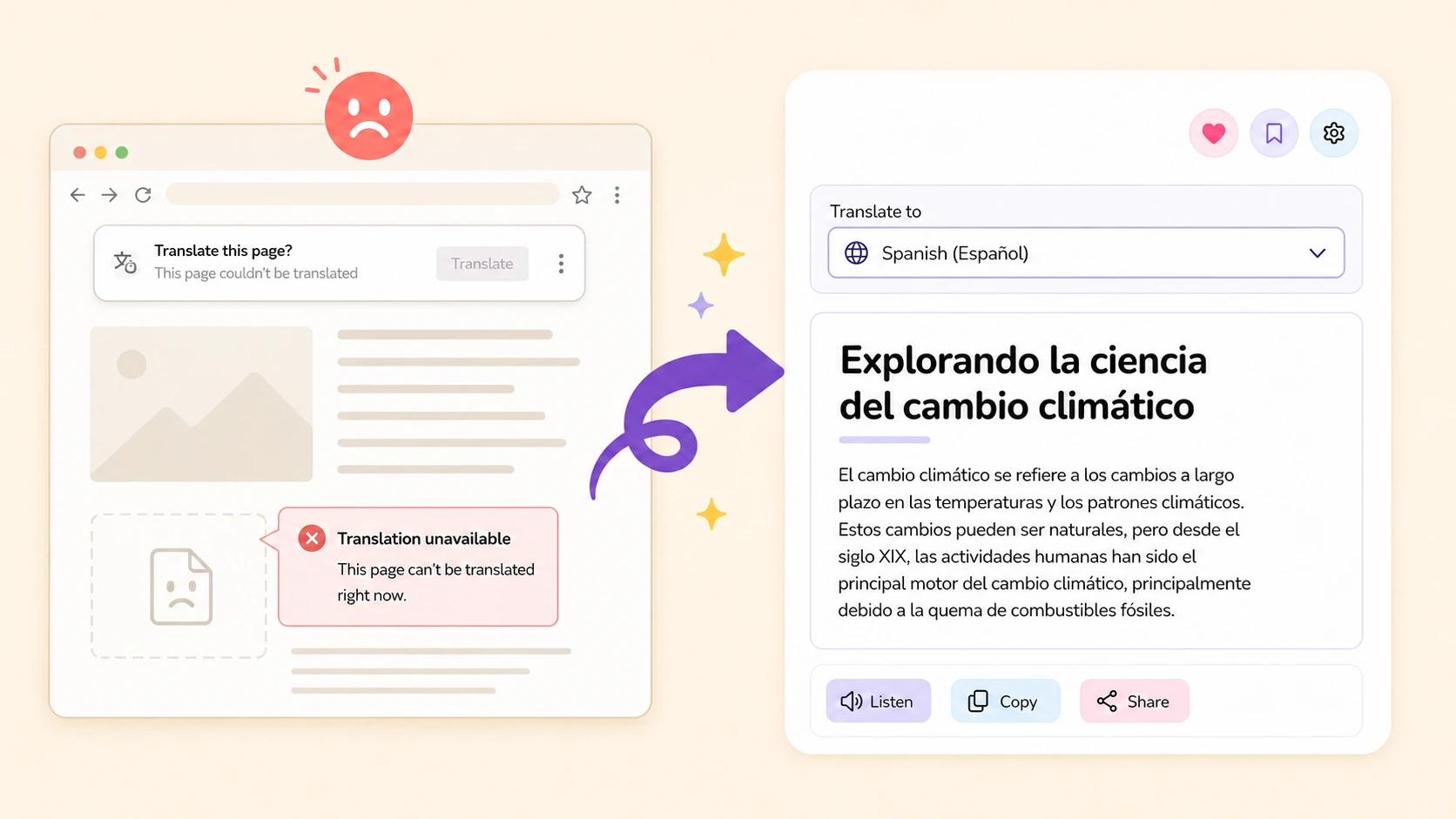
If Chrome keeps failing and you only need to understand the page, do not spend all your time fighting the browser. Try one of these fallbacks:
- Open the page in another browser with translation support.
- Copy the most important section into a translator.
- Use a URL-based webpage translator.
- Save or print the page as text if the site allows it.
- Try the mobile version of the page, which may have simpler markup.
For full-page AI translation, this guide explains the URL-based workflow: how to translate an entire webpage with AI.
Why Chrome Translate Sometimes Feels Inconsistent
Chrome translation is optimized for speed and convenience. That is why it feels magical on simple pages and unreliable on messy ones. A modern webpage is not just HTML text. It can include client-side rendering, embedded widgets, lazy-loaded sections, cookie banners, paywall overlays, tracking scripts, comments, ads, and images with text.
Translation tools work best when the main content is accessible as normal text. When the page is a complex app rather than an article, translation becomes less predictable.
This is also why Google Translate and AI translators can produce different results. Google Translate is fast and broad. AI translators may be better for longer context and more natural wording, especially when the page is an article rather than a simple menu. For a deeper comparison, read AI translator vs Google Translate for webpage translation.
A Simple Troubleshooting Order
Use this order when Chrome translate not working blocks you:
- Test another foreign-language page.
- Check Chrome language and translation settings.
- Look for the translate icon or right-click translate option.
- Reload and update Chrome.
- Test in incognito.
- Disable conflicting extensions.
- Clear site data for the affected website.
- Try a URL-based translator if the page itself is the problem.
This order avoids destructive fixes and helps you quickly tell whether Chrome or the page is responsible.
Final Takeaway
When Chrome translate not working appears, the cause is usually one of three things: translation prompts are disabled, Chrome cannot detect the page language, or the webpage is built in a way that prevents clean translation.
Do the simple checks first. If Chrome fails across many pages, fix your browser settings or extension conflicts. If it fails only on one website, use another translation workflow instead of chasing a browser setting that is not the real issue.
For readers who often translate long public webpages, ClaviSay can be used as a reading-first fallback when built-in browser translation is unavailable, incomplete, or hard to verify.