Copying a paragraph into a translator is easy. Translating a whole webpage is not. Long articles have headings, links, images, examples, quotes, product names, and repeated terms. If you copy the text section by section, the reading flow breaks quickly.
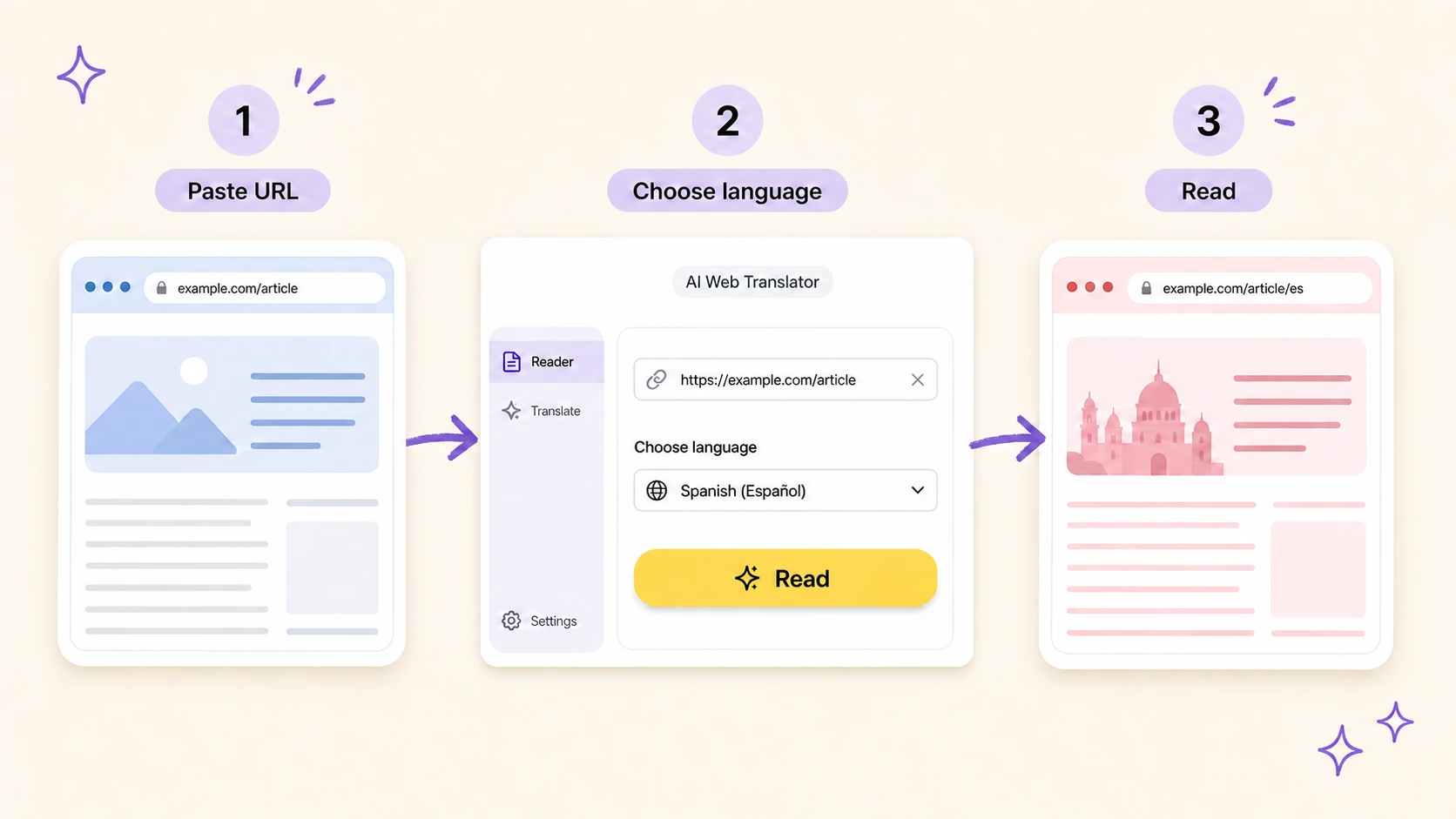
That is why many readers now look for how to translate an entire webpage with AI. The ideal workflow is simple: paste the webpage URL, choose a target language, wait for the main content to be translated, and read the result in a clean view. No manual cleanup. No paragraph splitting. No browser extension required.
This guide explains the practical workflow, what kind of pages work best, where AI translation helps, and what to do when a webpage cannot be translated from its URL.
The Short Version
To translate an entire webpage with AI, use a URL-based webpage translator:
- Copy the public webpage URL.
- Paste it into an AI webpage translation tool.
- Choose the target language.
- Start the translation.
- Read the translated result.
- Check the original text when a term, quote, or technical phrase looks important.
That is the clean version of how to translate an entire webpage with AI. The quality of the result depends on the page structure, the translator’s extraction ability, and whether the page is publicly accessible.
Why Not Just Use Copy and Paste?
Copy-and-paste translation works for short text. It becomes frustrating with full webpages.
First, you have to decide what to copy. A webpage includes navigation, sidebars, pop-ups, comments, ads, related posts, and footer links. If you copy everything, the translation becomes noisy. If you copy only part of it, you may miss context.
Second, long pages often exceed translation box limits. You end up splitting the article into chunks, which can create inconsistent terms. A product name may be translated one way in the first section and another way later.
Third, you lose structure. A translated article is easier to read when headings, lists, quotes, and paragraph breaks are preserved. A wall of translated text is technically useful but unpleasant to read.
For occasional sentences, copy and paste is fine. For full pages, a URL-based workflow is more practical.
Step 1: Choose a Public Webpage
Start with a public page. AI webpage translation works best for articles, blogs, documentation, help pages, news stories, and product pages that can be opened without logging in.
Pages that are hidden behind login screens, paywalls, app dashboards, private documents, or anti-bot blocks may fail. The translator needs access to the page content. If you can only see the page after signing in, a URL-based tool usually cannot read it.
If the page is mostly images, scanned text, or interactive widgets, translation may also be incomplete. Text needs to be extractable.
Step 2: Paste the URL into an AI Webpage Translator
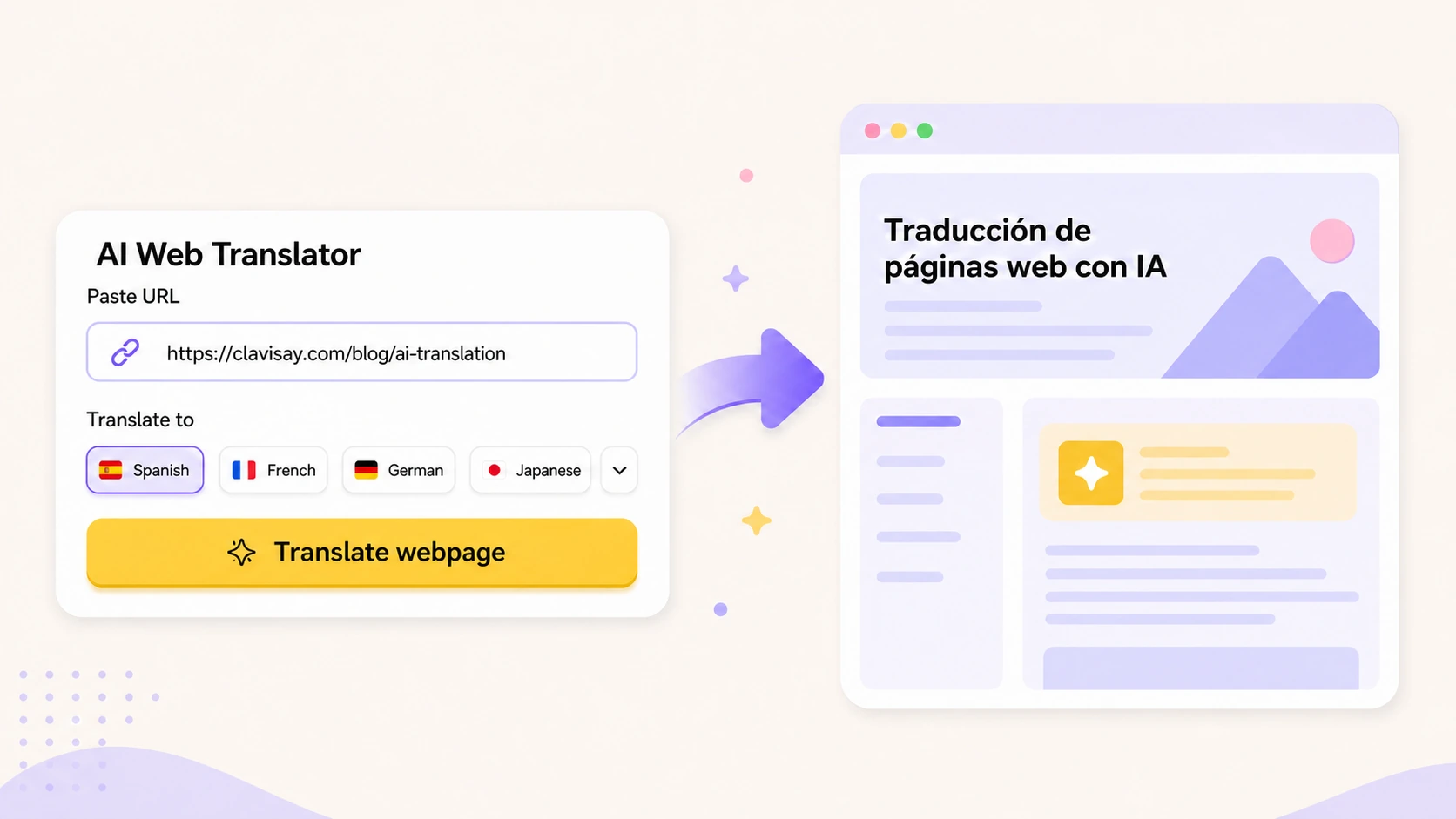
Open a URL-based translator such as an AI Web Translator. Paste the webpage link into the input field.
This is the key difference from a normal text translator. You are not pasting the article text. You are giving the tool the webpage address, so it can fetch the page, identify the main content, and prepare it for translation.
For a long article, this is much faster than manually selecting sections. It also reduces the risk of accidentally copying menus, comments, or unrelated recommendations.
Step 3: Choose the Target Language
Choose the language you want to read in. Some tools can detect the source language automatically, but you should still check the target language before starting.
If the page contains mixed languages, translation may be less predictable. For example, an English article with Japanese examples, code snippets, product names, and quoted comments may need more careful review. Good AI translation can handle context, but it should not be treated as perfect for every term.
Step 4: Read the Translated Result
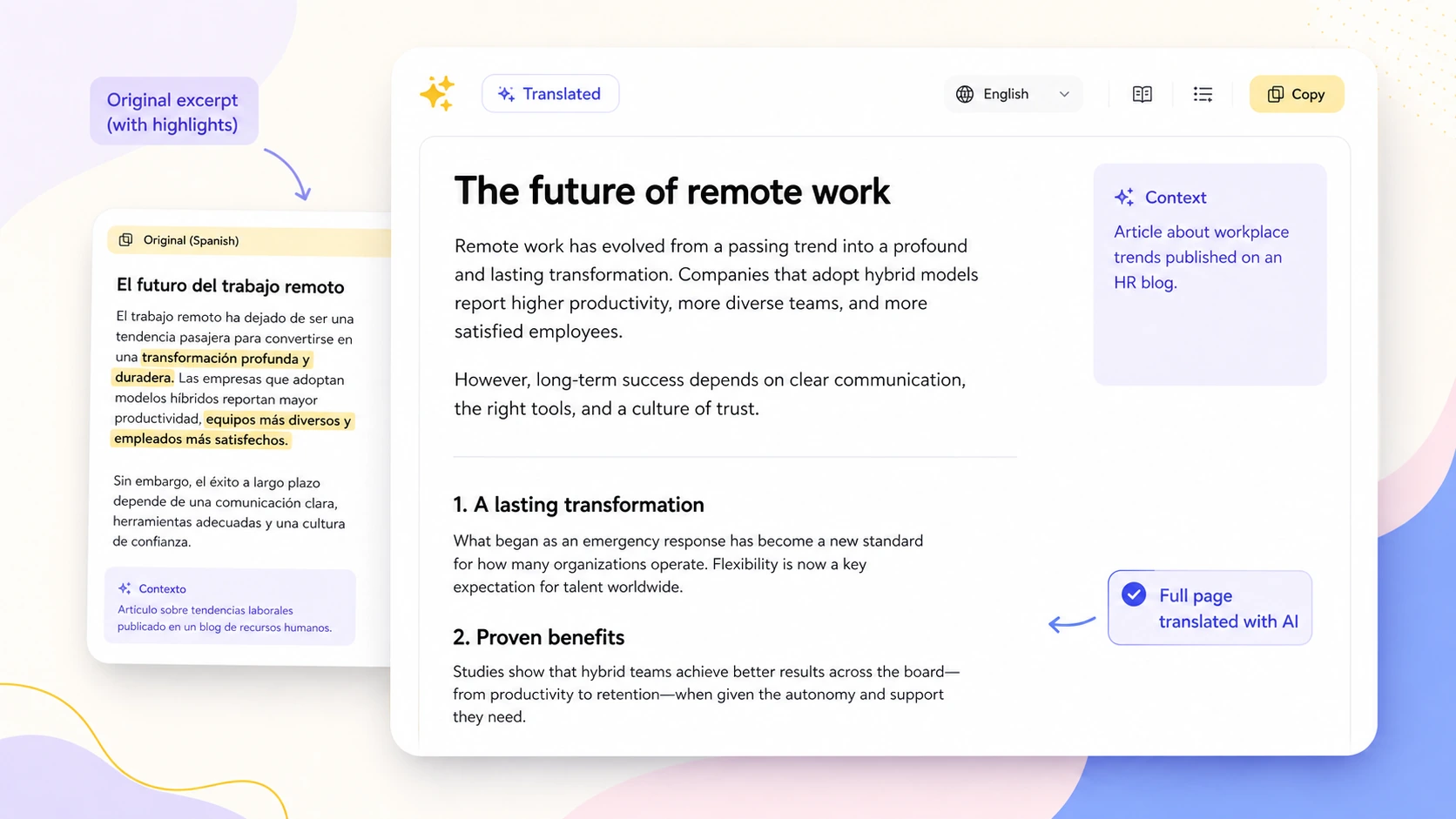
Once the translation is complete, read the translated page as a page, not as a text dump. A good result should preserve the main reading structure: title, headings, paragraphs, lists, and important links where possible.
This matters because webpage translation is partly a reading experience. If the translation is accurate but the structure is broken, the page becomes harder to understand. For long pages, layout and hierarchy help your brain keep track of what the author is saying.
If the tool provides original and translated reading modes, use them. Switch back to the original when a term looks strange, when a quote matters, or when you need to verify a technical detail.
Step 5: Check Important Terms Against the Original
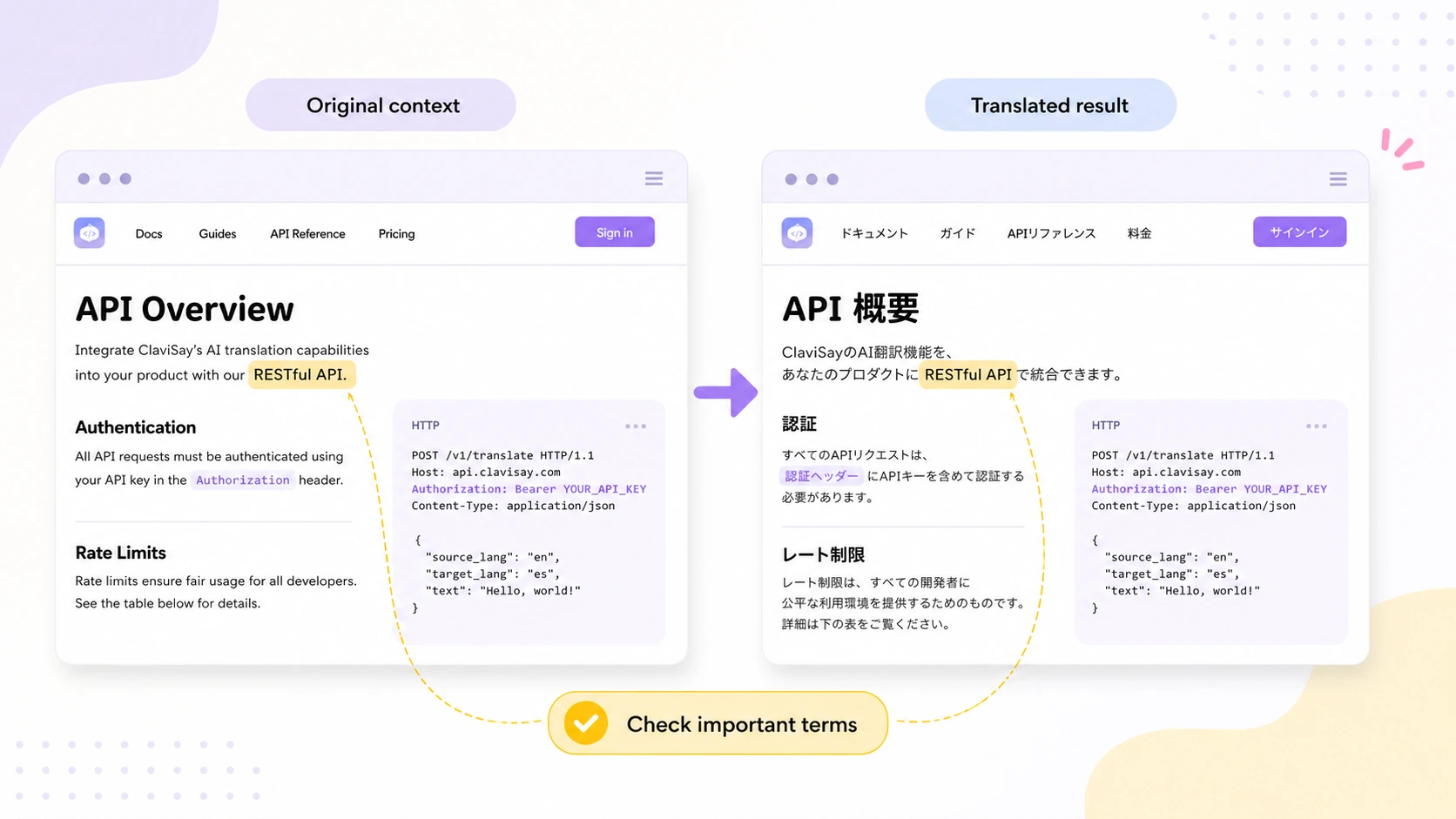
AI translation can be more natural than literal translation, but you still need judgment. Names, legal terms, medical claims, financial statements, product specs, and technical instructions should be checked against the original.
For normal reading, a natural translation is usually enough. For decisions, citations, work documents, or anything high-stakes, verify the source.
This is one reason original context is valuable. A translation that replaces the entire page without easy comparison may be fast, but it can make verification harder.
What If the Webpage Will Not Translate?
If the translation fails, check the page type first.
Is it public? Does it require login? Is the text visible as selectable text? Is the page a PDF, a dashboard, or an app screen? Does it load content only after user interaction?
If the page is blocked or private, a URL-based translator may not be able to access it. In that case, copy the specific section you need, or use the browser’s built-in translation if the page is visible to you.
If Chrome’s built-in translation is the part failing, use this troubleshooting guide: Chrome Translate not working.
If you are using Firefox and want to avoid extensions, this guide covers the built-in browser option: how to translate a webpage in Firefox without installing an extension.
AI Webpage Translation vs Browser Translation
Browser translation is convenient because it happens in place. If you are reading a short page and Chrome or Firefox offers translation, use it. It is fast and low effort.
AI webpage translation is more useful when the page is long, the browser option is unavailable, or you want a cleaner reading result. AI can use broader context from the page, which may help with repeated terms and long sentences.
The tradeoff is speed and access. Browser translation may be faster for simple pages. A URL-based AI translator may take longer because it has to fetch, extract, translate, and rebuild the readable result.
For a detailed comparison, read AI translator vs Google Translate for webpage translation.
Best Pages to Translate with AI
AI translation works especially well for:
- Foreign-language blog posts.
- Product documentation.
- Help center articles.
- News analysis.
- Startup landing pages.
- Research summaries.
- Long product comparison pages.
- Public policy or institutional pages.
It is less reliable for:
- Login-only dashboards.
- Paywalled content.
- Image-only pages.
- Pages with little real text.
- Highly interactive apps.
- Pages blocked from automated access.
Knowing this upfront prevents frustration.
Final Takeaway
If you want to know how to translate an entire webpage with AI, the best workflow is not copying text into a chat box. It is using the webpage URL directly.
Copy the public URL, choose your target language, translate the main content, and read the result in a structured view. Use browser translation for quick simple pages. Use AI webpage translation when the page is long, context-heavy, or difficult to translate cleanly in the browser.
For people who read foreign-language pages as part of research, work, or learning, ClaviSay offers a reading-first way to turn web content into something you can understand without breaking the page into pieces.