Left: original PDF text
Learners can select a word, sentence, or paragraph in the original PDF. The matching translation is highlighted on the right.
Translate PDFs side by side, highlight matching text, and download your translation.
Uploading → Extracting text → Preparing translation
Learners can select a word, sentence, or paragraph in the original PDF. The matching translation is highlighted on the right.
对应译文按页和段落对齐展示。点击译文时,左侧原文同步高亮,便于确认上下文。
Most PDF translators turn an entire document into another language and hand you a finished file. That works for a quick scan, but it falls apart the moment you actually want to read. The translated page looks nothing like the original, you lose the layout you were trying to follow, and the hard words you needed to learn are already gone. A better approach is a PDF reading translator: keep the original PDF in front of you, and translate only the word, sentence, or passage you are stuck on. That is what ClaviSay does. With the reading workspace, you open a PDF in a two-column bilingual view, tap any phrase to see a context-aware explanation, and save useful words and expressions into a personal vocabulary library you can review later.
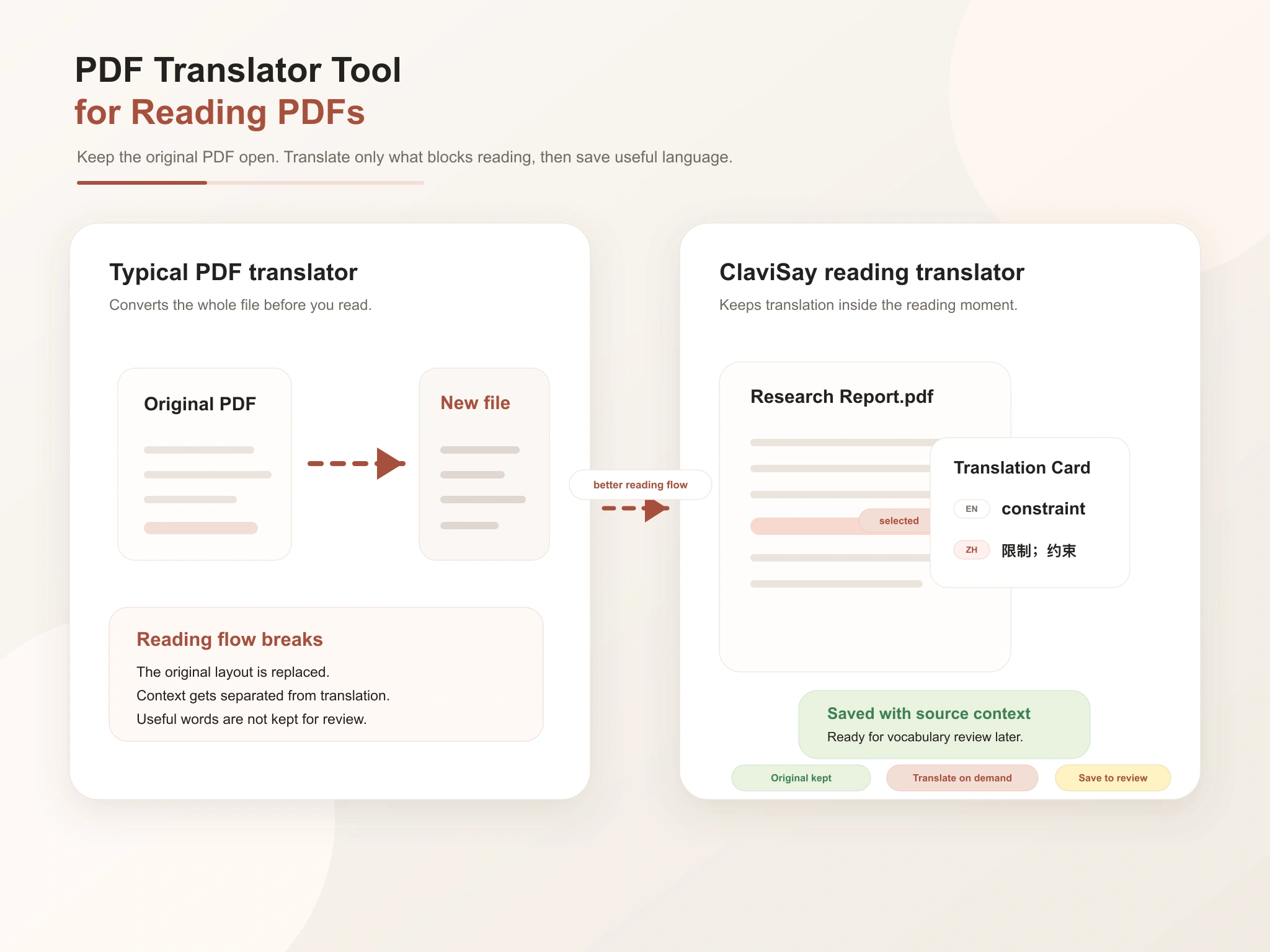
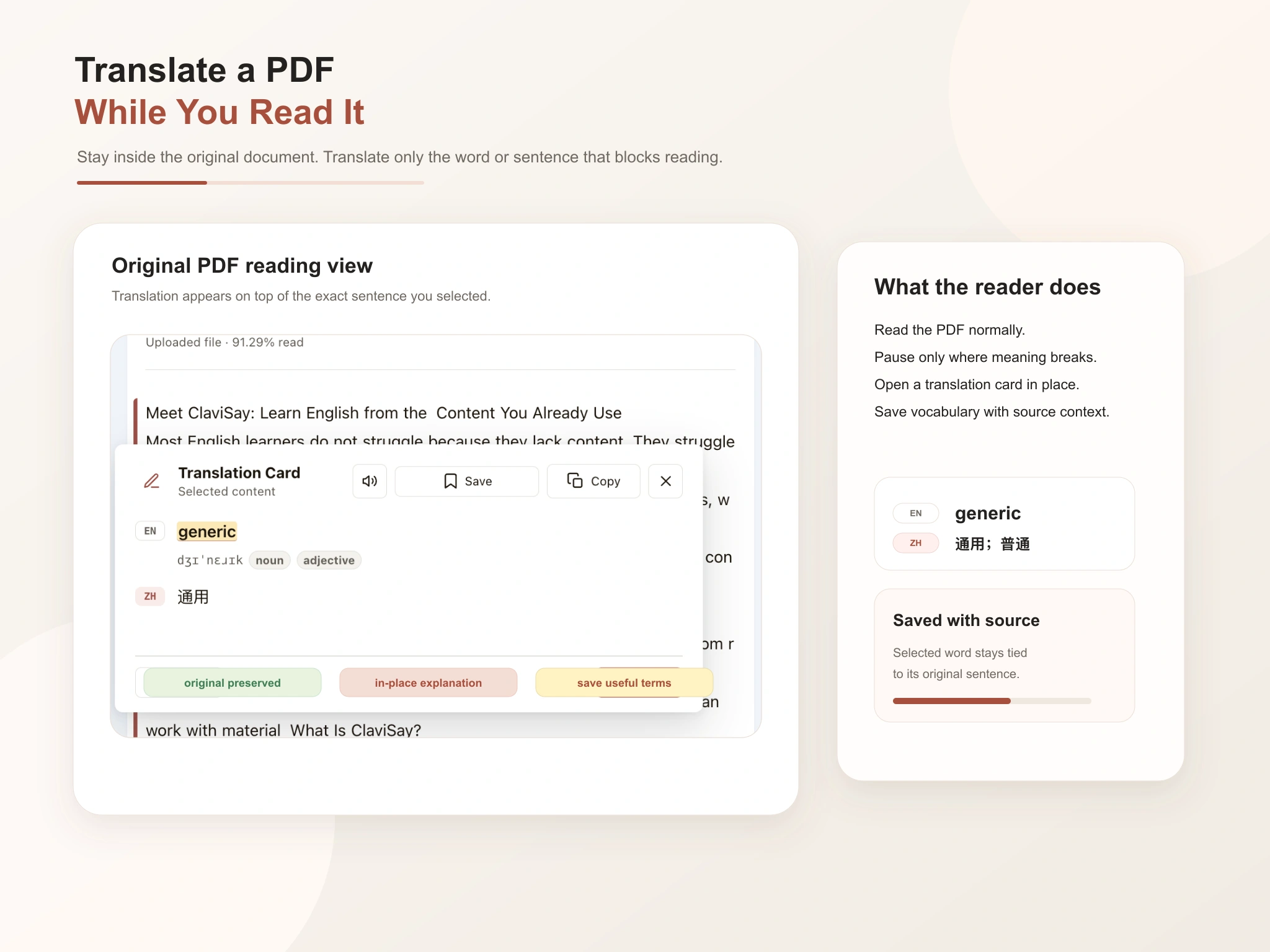
Reading an English PDF is rarely a smooth experience. Academic papers, industry reports, manuals, and ebooks are full of specialized vocabulary and long, dense sentences. A reading-based PDF translator removes that friction. Instead of translating the whole document in advance, you translate on demand: a word here, a sentence there, a tricky passage when you need it. When the translation helps you understand something worth keeping, you save it in one tap with the original sentence and its source.
PDF to Vocabulary is a learning approach that turns PDF documents into personalized vocabulary resources. Instead of highlighting words by hand and copying them into a notebook, you can pull vocabulary directly out of the PDFs you already read. Every saved item keeps its original sentence and document context, which makes vocabulary much easier to understand and remember. Learners who prefer video-based input may also benefit from YouTube to Vocabulary, the same workflow built around real videos instead of documents.
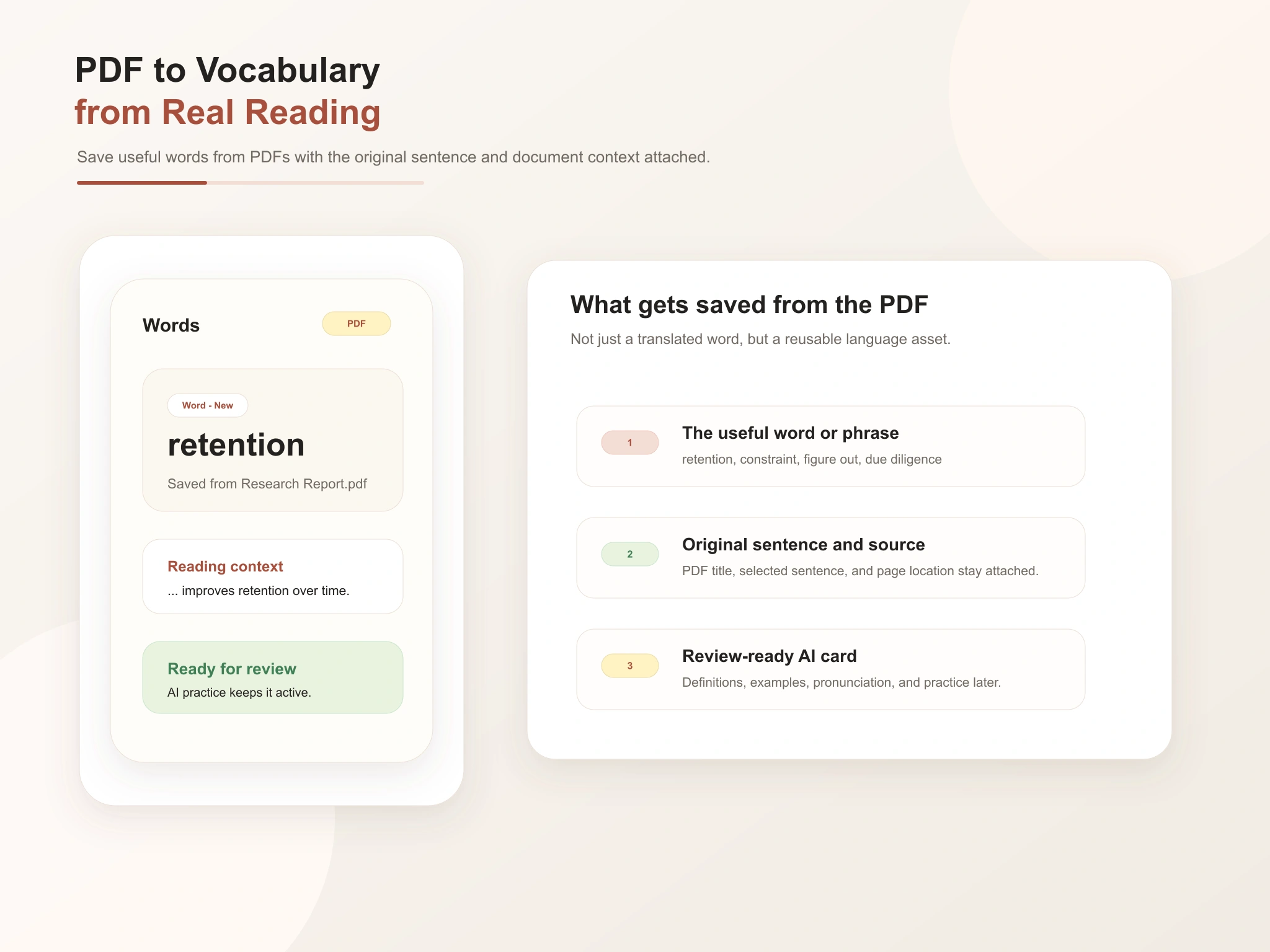
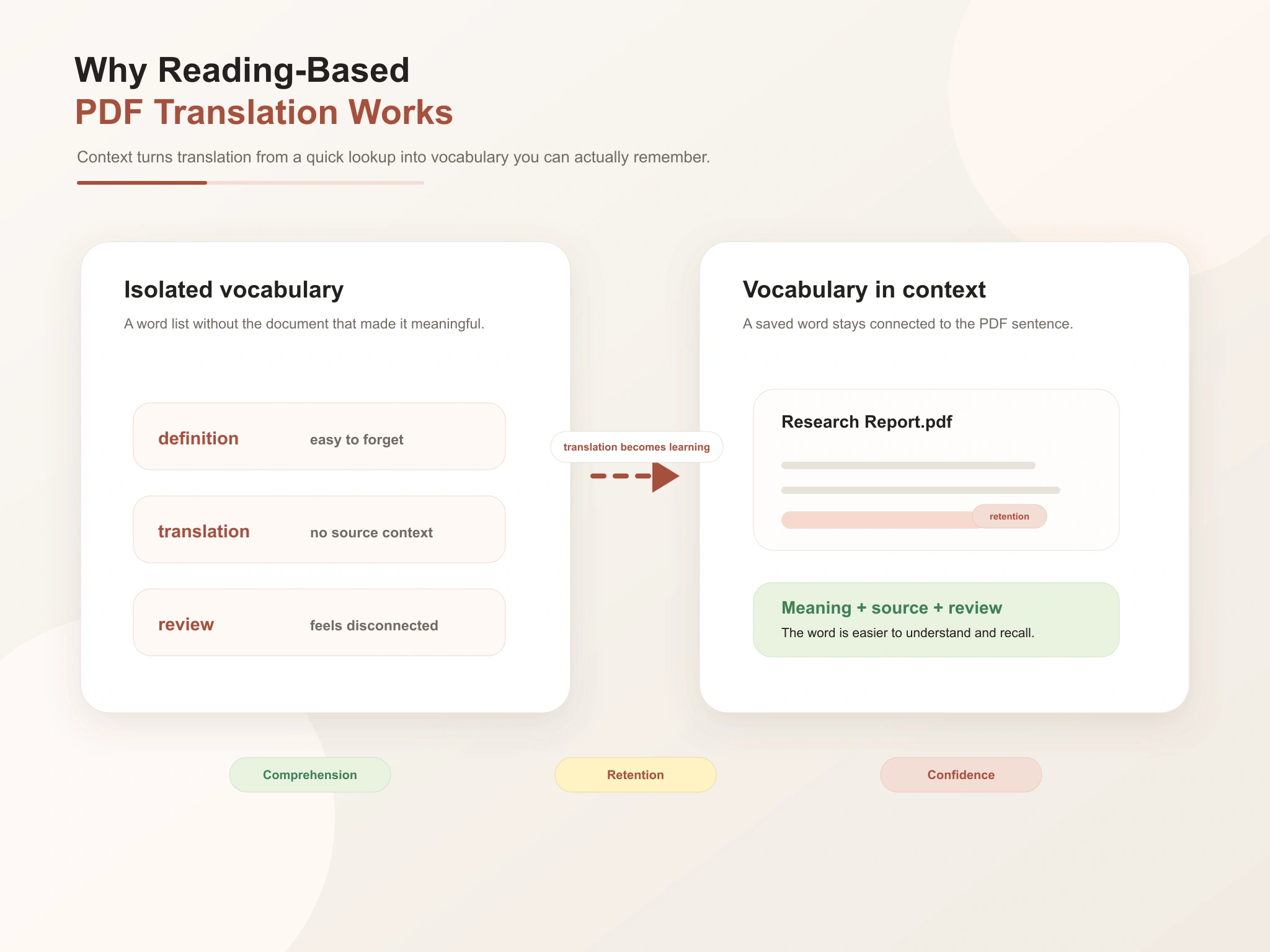
Traditional vocabulary learning pulls words out of context. A reading-based PDF translator does the opposite: it connects language learning to real documents you are actually trying to understand. When you meet a word inside a report, an ebook, or an academic paper, the surrounding sentences already tell you most of what you need to know. The translation just fills the gap and turns reading time into long-term vocabulary growth.
A lot of people translate a PDF, feel relieved, and then realize two days later they remember almost nothing from it. You paste the whole PDF into a translator and read the output instead of the original, bounce between tools, look up a word once, or translate full passages when you only needed one sentence. A PDF reading translator fixes this at the source. You translate exactly what you need, stay inside the document, and save the words worth keeping with context.
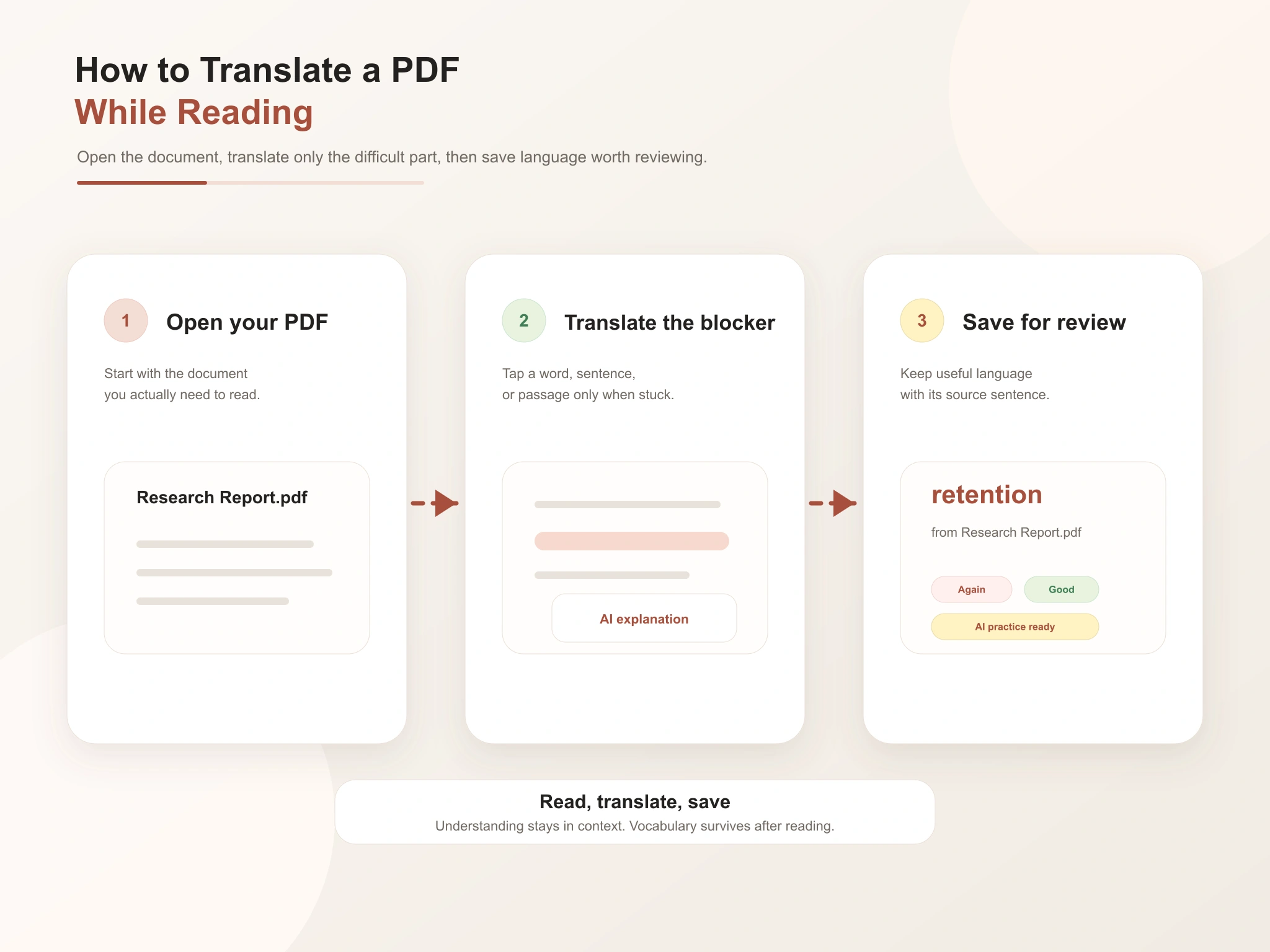
ClaviSay is built around reading real documents, not around converting files. That changes how the whole workflow feels.
Start with a PDF upload or open a sample document that demonstrates aligned translation, highlights, and explanations.
Translate into Simplified Chinese, Traditional Chinese, Spanish, French, German, Japanese, or English.
PDF format, size, page count, scanned documents, encrypted files, and extraction failures are surfaced clearly before the workspace opens.
The original PDF text stays on the left, the aligned translation stays on the right, and matching paragraphs highlight together.
When translation is complete, export the translated PDF or a bilingual side-by-side version for study and review.
Save words, phrases, or sentences with type, language, translation, PDF filename, page number, and surrounding context.
The workflow is intentionally short. You can go from opening a document to saving your first word in under a minute.
Choose a text-based PDF up to 10 MB and 20 pages, or open a sample PDF.
Pick the translation language before generating the side-by-side workspace.
Compare original and translated text, highlight matching passages, save useful language, and download the result.
Turn every PDF into a real reading session. Translate what you need, understand difficult content in context, and save the vocabulary worth keeping without leaving the original document. If you also like learning from books, browse our guide to Books to Increase Vocabulary for more ways to turn reading into long-term growth.
Start Reading with ClaviSayI used to translate whole PDF reports and still feel lost two days later. Now I translate the sentence I am stuck on, save the word, and actually remember it.
As a grad student I read papers every day. Saving terminology with the original sentence has completely changed how I build academic vocabulary.
I read white papers and industry reports for work. Saving professional expressions straight from the document beats any separate vocabulary app.
Most translation tools throw me out of the document. This one keeps me inside it. I read faster, and the words I save come back during review.
A PDF translator helps you understand the content of a PDF in another language. This one takes a reading-based approach: translate individual words, sentences, and passages while you read.
Full-document translation hands you a finished file but disconnects you from the original. A reading-based PDF translator keeps you inside the document and turns useful language into reviewable vocabulary.
Yes. You can translate a single word, a phrase, a full sentence, or a passage.
Yes. Research papers are one of the best sources of academic vocabulary and specialized expressions.
Yes. Saved words and expressions are stored with their source sentence and can be reviewed through personalized activities.
Yes. Saved vocabulary can be turned into AI-powered flashcards with definitions, pronunciation, examples, and contextual explanations.
Reports, ebooks, white papers, research papers, study materials, manuals, and professional documents all work well.
No. You open the PDF in the reading workspace and translate on demand. You never have to convert the entire file just to understand a few difficult parts.
Yes. Advanced learners use it to collect specialized terminology, professional language, and academic expressions.
Yes. If you learn better from video, try YouTube to Vocabulary. If you prefer books, see Books to Increase Vocabulary.