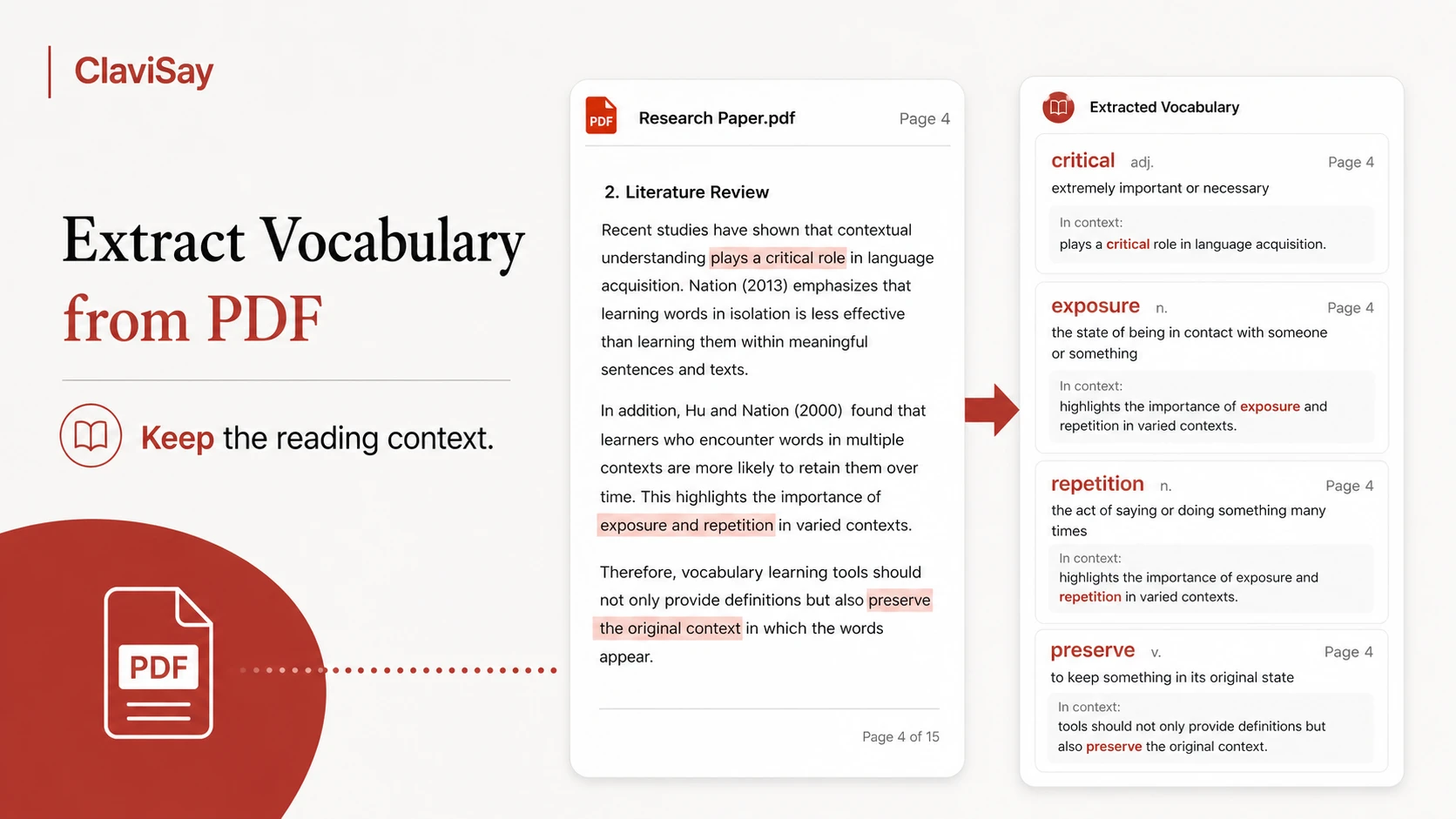
PDFs contain some of the most valuable language learners encounter: research papers, textbooks, reports, manuals, course readings, and industry documents. They are also unusually awkward places to collect vocabulary.
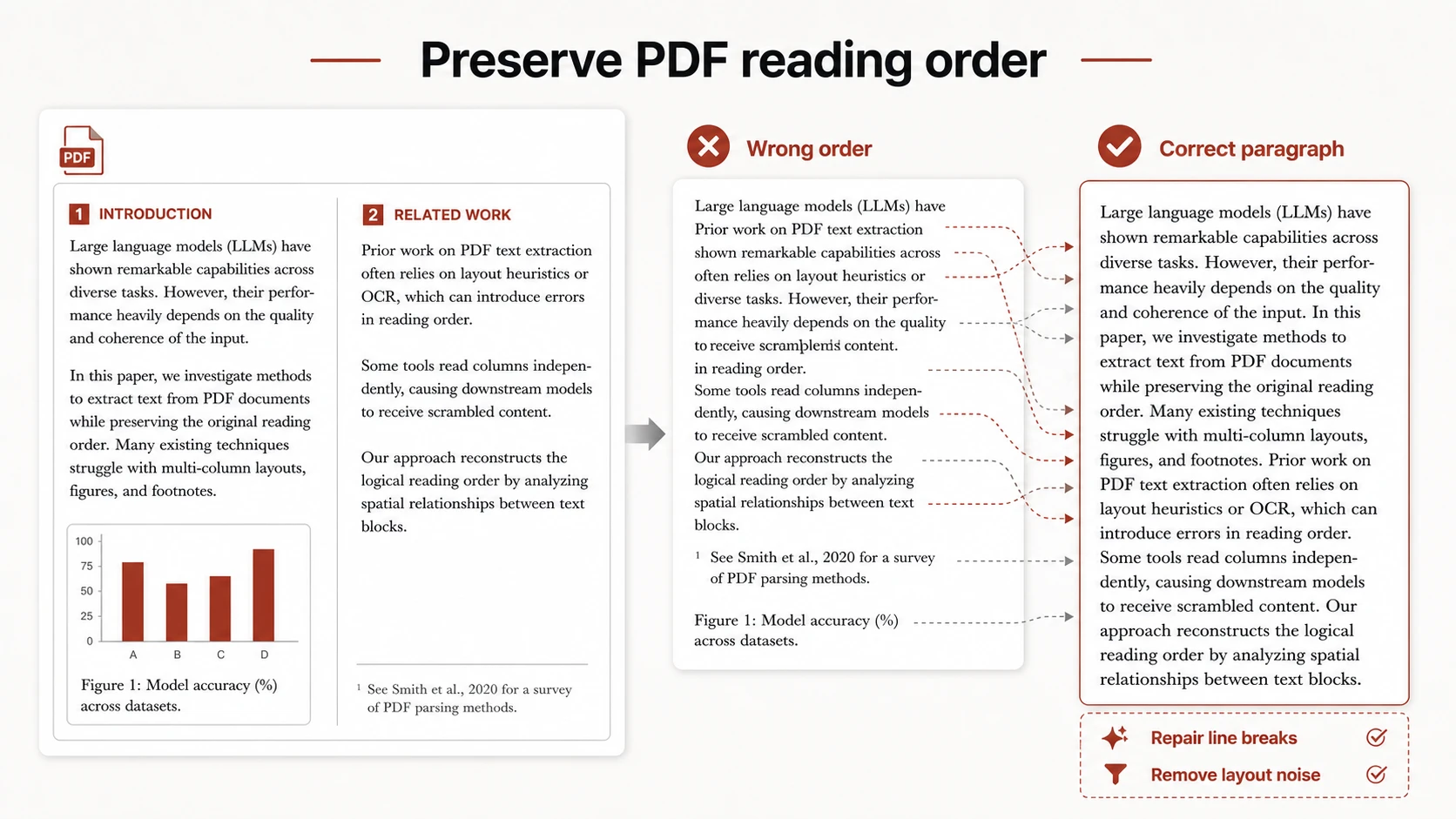
Copying may break a sentence across lines. A two-column paper may paste paragraphs in the wrong order. A scanned page may contain no selectable text at all. Even when extraction works, footnotes and references can flood a word list with noise. The right way to extract vocabulary from PDF starts before you choose a single word.
First, Identify What Kind of PDF You Have
Try selecting a sentence. If the text highlights normally and copies in the correct order, the document is text-based. If you can only select the whole page as an image, it is probably scanned and requires optical character recognition (OCR).
Some PDFs sit in between: the text is selectable, but characters, columns, or hyphenated line breaks are corrupted. Test one paragraph before processing the entire file. For confidential work documents, check the tool's privacy and retention policy before uploading anything. Remove names or sensitive pages when possible.
Do Not Extract the Entire Document by Default
A 60-page report may contain a two-page section you actually need. Processing everything introduces terminology from appendices, references, and unrelated chapters.
Start with the section tied to your immediate purpose. Ask what you must understand for the next class or meeting, which pages contain the argument or procedure you need, and whether you are learning general English, academic language, or subject terminology.
Smaller sections produce cleaner lists and make it easier to verify every source sentence.
Preserve Reading Order and Source Sentences
PDF extraction is not only about recognizing characters. The order matters. In a two-column paper, the last line of the left column should not merge with the first line of the right. Captions should not appear in the middle of a paragraph. Hyphenated line breaks should be repaired when the word was split only by layout.
Before saving vocabulary, compare the extracted sentence with the visible page. This one check prevents many incorrect examples.
Choose Vocabulary with the Document's Purpose in Mind
Frequency is not enough. A word may appear once and still be central to the paper. Another may occur twenty times but already be familiar.
Keep items that are essential to the document's argument, repeated across the subject area, part of a useful academic or professional phrase, difficult because of meaning rather than spelling, and likely to appear in future reading.
In technical PDFs, separate domain terms from reusable language. Photosynthetic efficiency may be necessary for one biology paper, while account for the difference is useful across many subjects.
Save Phrases, Not Just Technical Nouns
Research and professional writing depend heavily on recurring patterns: the findings suggest that, is associated with, a significant increase in, underlying assumption, and within the scope of.
These phrases help learners read future documents faster and write more naturally. A PDF vocabulary extractor that returns only single nouns misses much of the language worth learning.
Build a Contextual Entry
For each selected item, keep the word or phrase, the page number or section, the original sentence, the meaning used in this document, one pattern or related form, and a short retrieval prompt.
Page information matters because PDFs are long. It lets you return to a chart, definition, or preceding paragraph when the sentence alone is insufficient.
Use OCR Carefully with Scanned PDFs
OCR can misread similar characters, remove punctuation, or turn a two-column page into a jumble. Names and specialized terms are especially vulnerable.
After OCR, compare target terms with the image, check sentence boundaries, repair broken words, remove headers and page numbers, verify symbols and abbreviations, and avoid trusting definitions built from corrupted sentences.
The cleaner the source text, the better any later vocabulary explanation will be.
A Faster Context-First Workflow
Manual PDF work involves repeated copying, searching, and formatting. A PDF-to-vocabulary tool can reduce that friction.
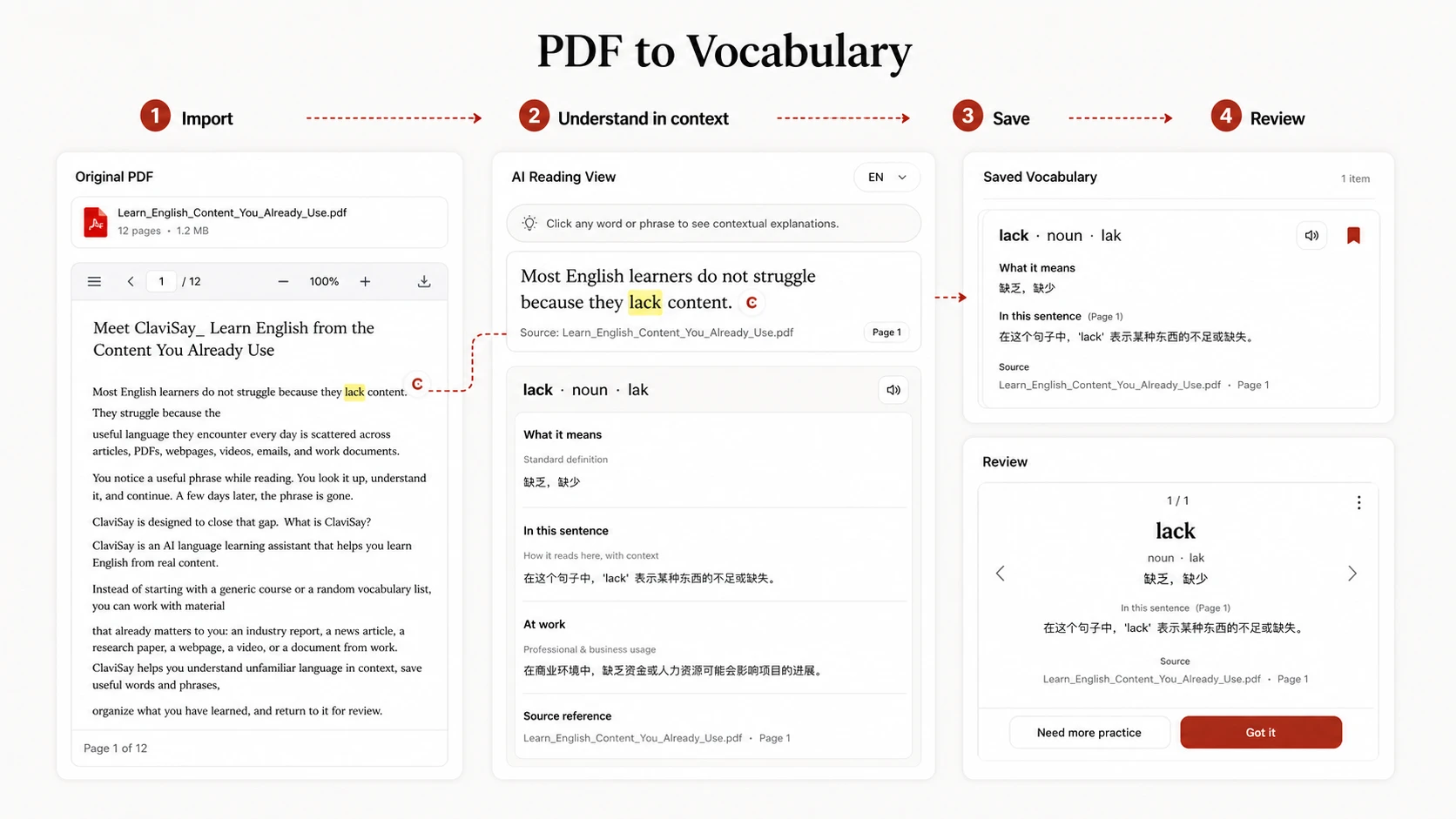
With ClaviSay, a PDF can become part of the same learning workflow as articles and webpages: import the material, understand unfamiliar language in context, save useful words and phrases with a vocabulary builder, and return for review. The learner still chooses what matters; the tool keeps the source and learning notes connected.
Review Vocabulary by Returning to the PDF
During review, try recalling the meaning before reopening the page. Then use the source to check tone, grammar, and surrounding evidence.
For important phrases, write a new sentence about a different document. If you learned is consistent with the findings in one paper, use the pattern to describe another source. This transfer is what turns a PDF note into usable language.
Common Mistakes
Avoid extracting every uncommon token, treating references as learning content, trusting OCR without checking it, saving only definitions, and building one enormous list for the entire document.
Also avoid uploading private or copyrighted files to services without understanding their policies. If your source is an article rather than a PDF, the companion guide on how to save vocabulary from articles is more relevant.
Frequently Asked Questions
Can I extract vocabulary from a scanned PDF?
Yes, but the document needs OCR first. Always compare important words and sentences with the page image.
How do I extract vocabulary from an academic paper?
Work section by section. Keep both subject terms and reusable academic phrases, and record the source page.
Should I include references and footnotes?
Usually not. Include them only when they contain language directly relevant to your purpose.
Can I create a quiz from PDF vocabulary?
Yes. After reviewing the list, use a vocabulary test generator to test selected items rather than the entire extracted text.
Is PDF vocabulary extraction accurate?
Accuracy depends on whether the PDF contains clean text, its layout, OCR quality, and the review process. Human verification is still necessary.
Keep the Document Attached to the Learning
The best PDF vocabulary list is not the longest. It is the one that helps you return to the argument, understand the language as it was used, and recognize the same pattern in the next document.
When you extract vocabulary from PDF, extract selectively, verify the text, and keep the page close enough to answer the questions a definition cannot.