Translate the page you are viewing
Open a supported public webpage in Chrome and start translation from the ClaviSay extension without copying the article into a separate translation box.
Install the ClaviSay Chrome extension to translate supported public webpages as you read, keep the original context nearby, and explore words or passages without copying them into a separate translator.
 Install the ClaviSay Chrome Extension
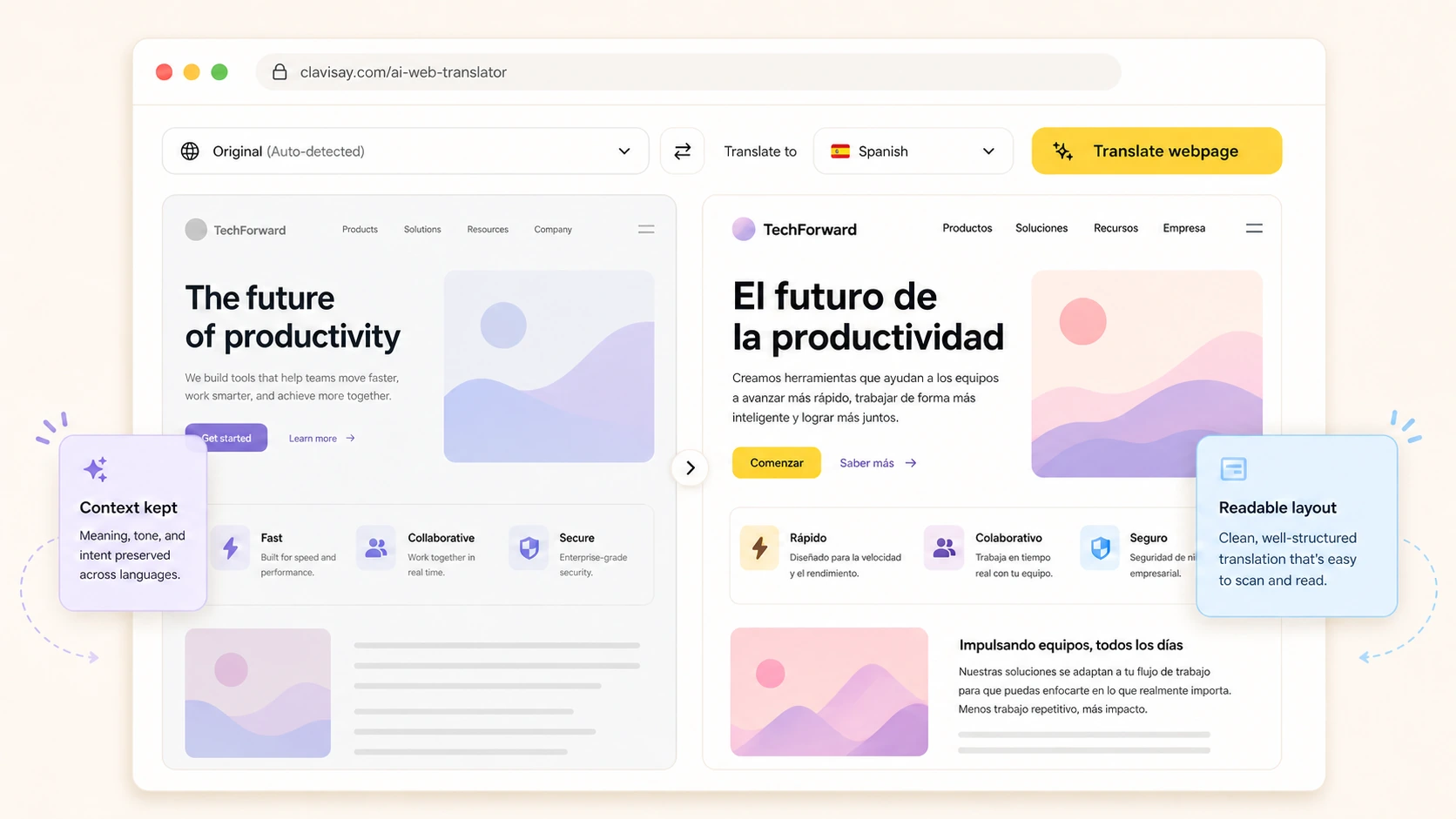
Keep the original on screen, translate the page in place, and use AI to explain or save any word, sentence, or passage you want to learn.
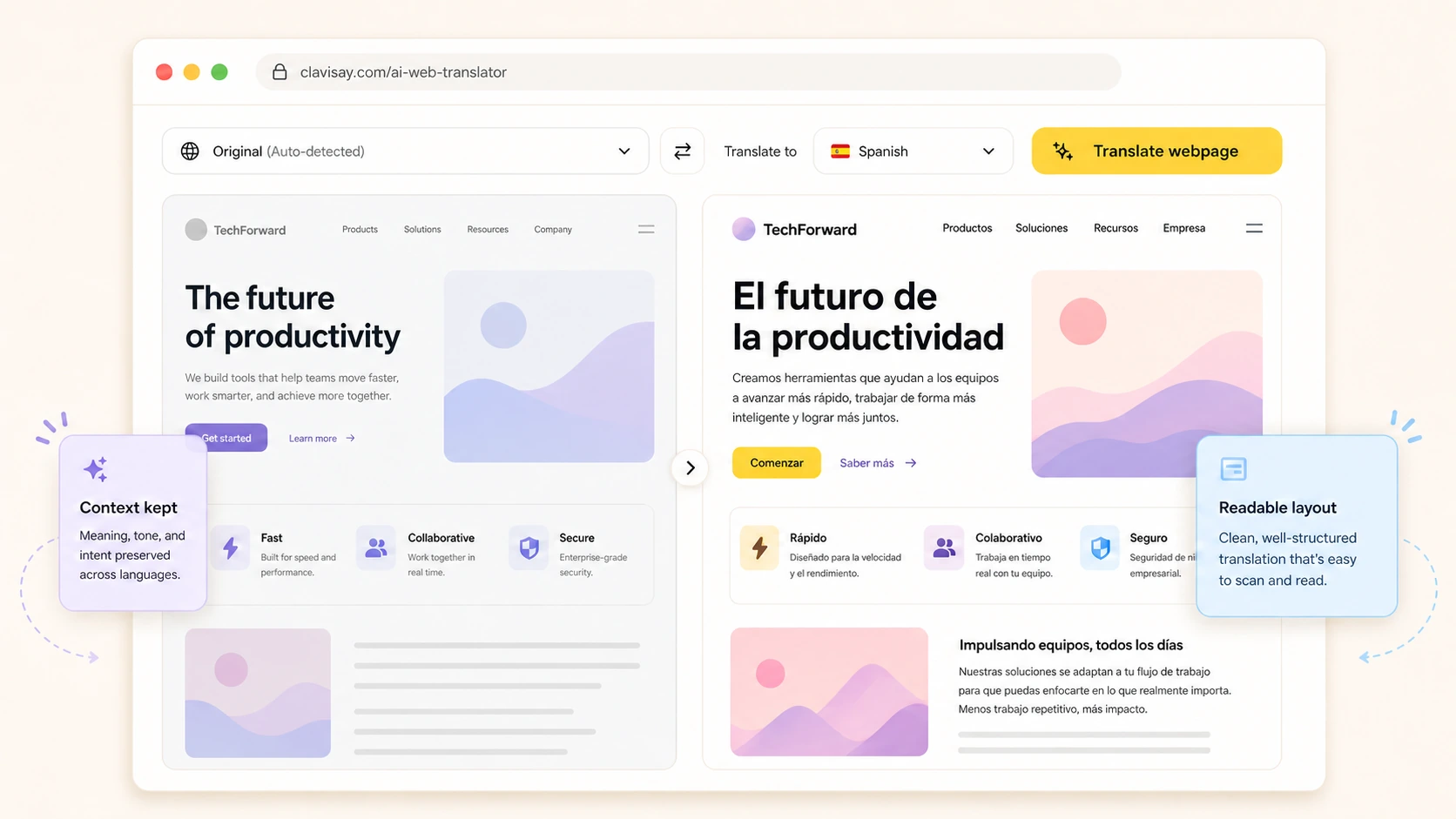 Add the ClaviSay Extension to Chrome
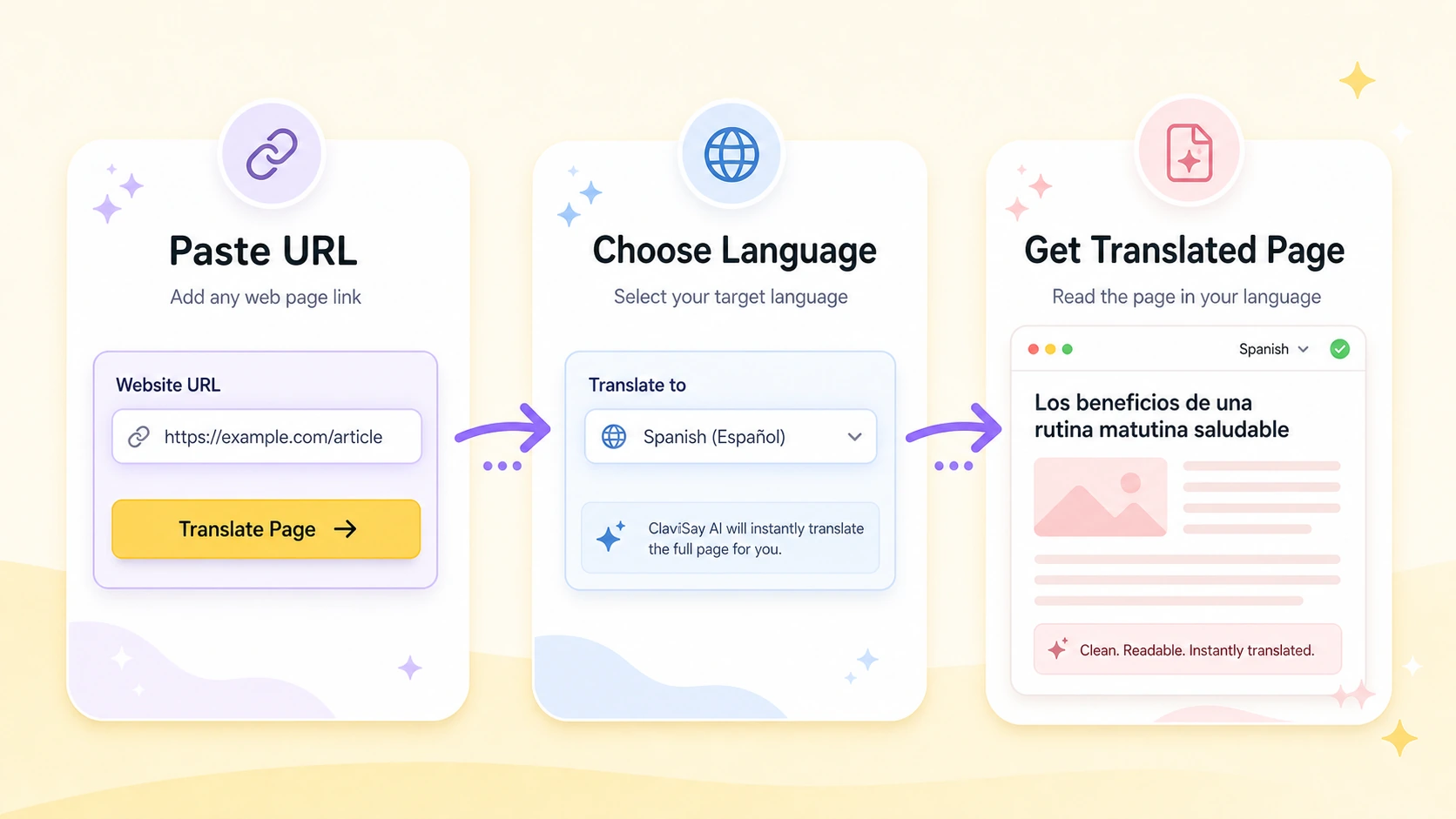
Browser translation is useful when it works, but it is not always available in every browser, app, device, or page context. The ClaviSay extension keeps the workflow on the page you are already reading: open the extension, select a language, and translate the supported webpage in place.
Add the ClaviSay Extension to Chrome
An AI Web Translator helps translate the main content of the webpage open in your browser. Instead of asking you to copy paragraphs into a separate translator, the extension reads supported page content, keeps the important reading structure, and adds translation to your reading workflow.
This is especially useful for long articles, foreign-language blogs, technical documentation, product pages, and news stories where sentence-by-sentence translation can break the meaning.
For a practical walkthrough, see how to translate an entire webpage with AI.
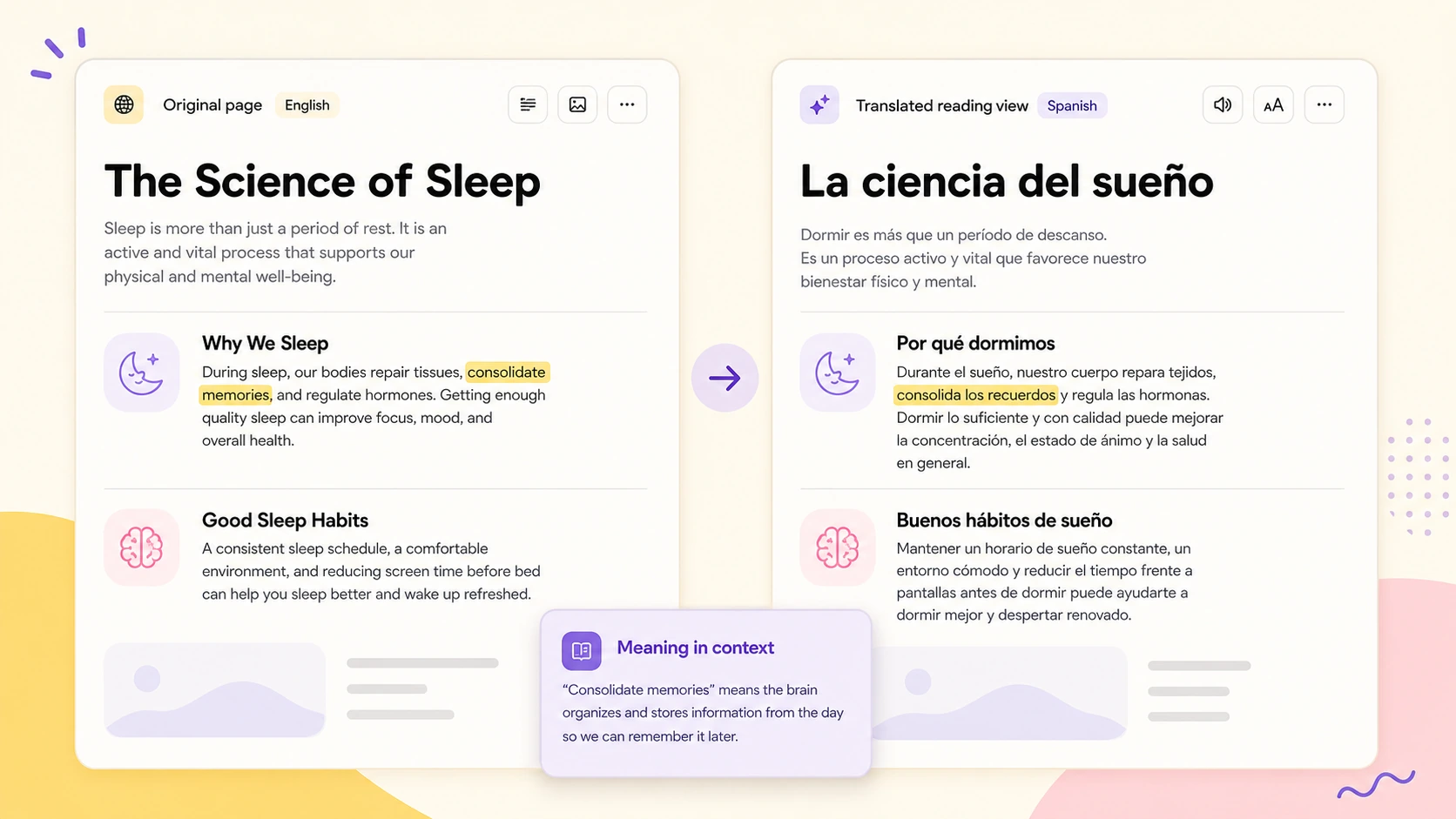
Webpages are not just isolated sentences. A good translation needs to understand headings, repeated terms, references, product names, examples, and the flow of the article. AI translation can use more context from the full page, which helps reduce awkward literal translation and inconsistent terminology.
AI Web Translator is most useful when you want the page to feel readable, not just technically translated.
As part of the ClaviSay reading workflow, it helps turn foreign-language pages into content you can actually understand and continue reading.
Built-in browser translation is convenient, but it can fail or feel limited in common situations:
If Chrome translation is failing, this related guide explains common fixes: Chrome Translate not working.
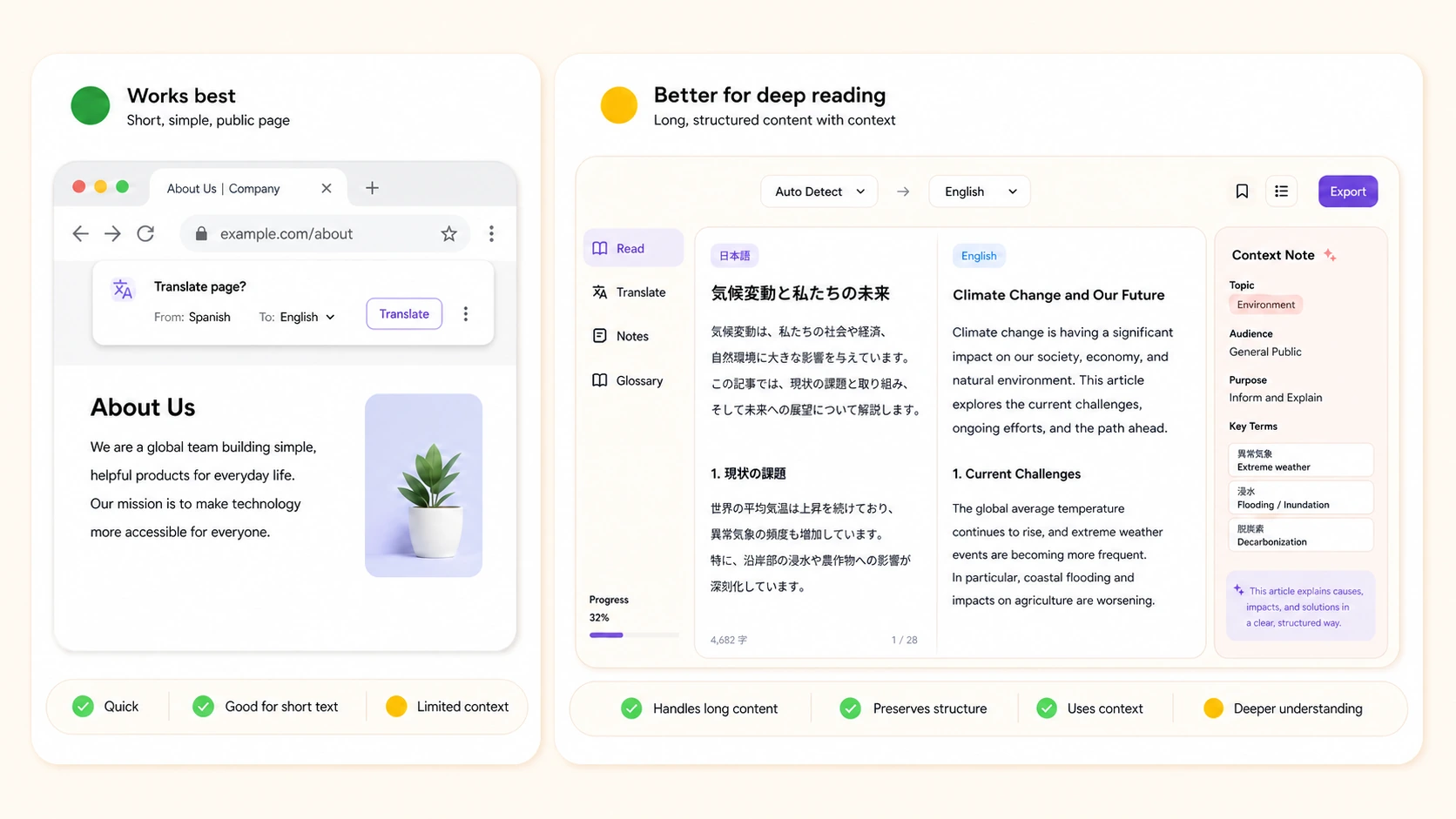
AI Web Translator is designed for reading, not just converting text from one language to another.
Open a supported public webpage in Chrome and start translation from the ClaviSay extension without copying the article into a separate translation box.
The extension focuses on the page title and main body content, so the translation is easier to read than a raw dump of navigation, comments, ads, and footer text.
Headings, paragraphs, lists, quotes, images, and key links should remain organized where possible, so the result still feels like an article instead of a plain text block.
Terms, people, brands, and repeated concepts can be handled more consistently when translation considers the broader page context.
Choose the language you want to read in from the extension, then switch languages without leaving the webpage.
Some pages cannot be translated by an extension, such as restricted browser pages, blocked content, or pages with no readable text. Clear feedback helps you decide what to try next.
Install once, then translate supported webpages from Chrome whenever you need help reading.
Add the ClaviSay extension from the Chrome Web Store and pin it for quick access.
Visit the article, blog post, documentation page, or product page you want to read in Chrome.
Open ClaviSay, select the language you want to read in, and start webpage translation.
Switch reading modes or compare the original page when you need to verify names, technical terms, quotes, or unusual phrases.
Install the ClaviSay Chrome extension, open a supported public webpage, and translate it without copying paragraphs by hand.
Install the ClaviSay Chrome Extension
“I often read foreign product pages and technical posts. Translating in the browser is faster than copying sections into a translation box.”
“For long articles, I need the translation to stay readable. A clean result page matters more than a raw text output.”
“When Chrome translation fails, I still need a way to understand the page quickly.”
“I compare global competitors, docs, and blogs. Keeping terminology consistent across the page saves time.”
“I want the original and translation close together so I can verify important wording as I read.”
“I use Chrome for research, so opening the translator from the page keeps the workflow easy to remember.”
AI Web Translator is the webpage translation workflow in the ClaviSay Chrome extension. It translates supported public webpages in the browser while keeping the reading structure visible where possible.
Yes. This page introduces the ClaviSay Chrome extension, and every primary call to action opens its Chrome Web Store listing.
No webpage translator can reliably translate every page. Restricted browser pages, login-only or paywalled content, blocked pages, pages with heavy scripts, or pages with little readable text may fail.
Google Translate is fast and widely available. AI Web Translator focuses on readable long-form webpage translation, page structure, and context-aware results. For a deeper comparison, read AI translator vs Google Translate for webpage translation.
The ClaviSay workflow on this page requires its Chrome extension. Firefox includes built-in translation in supported versions and languages; for a Firefox-specific walkthrough, read how to translate a webpage in Firefox without installing an extension.
It should preserve the key reading structure where possible, such as headings, paragraphs, lists, images, and links. It may not preserve every visual detail of the original website.
Public articles, blogs, news pages, documentation pages, product pages, and help pages usually work best because they contain clear readable text.
This page links to a Chrome desktop extension. Mobile browser extension support varies, so use a supported desktop Chrome browser for this workflow.
Check whether the page is public and contains readable text, refresh it, and reopen the extension. Restricted, blocked, paywalled, or script-only pages may not be available to the translator.